Variables let each customer see their own data on the loyalty card: their name, points, tier or birthday. You write them between double braces, like {{ firstName }}, in the Label or Value of any field on the card front in Customize → Loyalty card. Add a format after a pipe (|) to change how the data looks, for example {{ birthdate | date:'dd/MM/yyyy' }}. This guide lists every variable and format, with examples you can copy. To choose which fields appear on the card, see design your loyalty card.
Where to write variables 
Open the card front
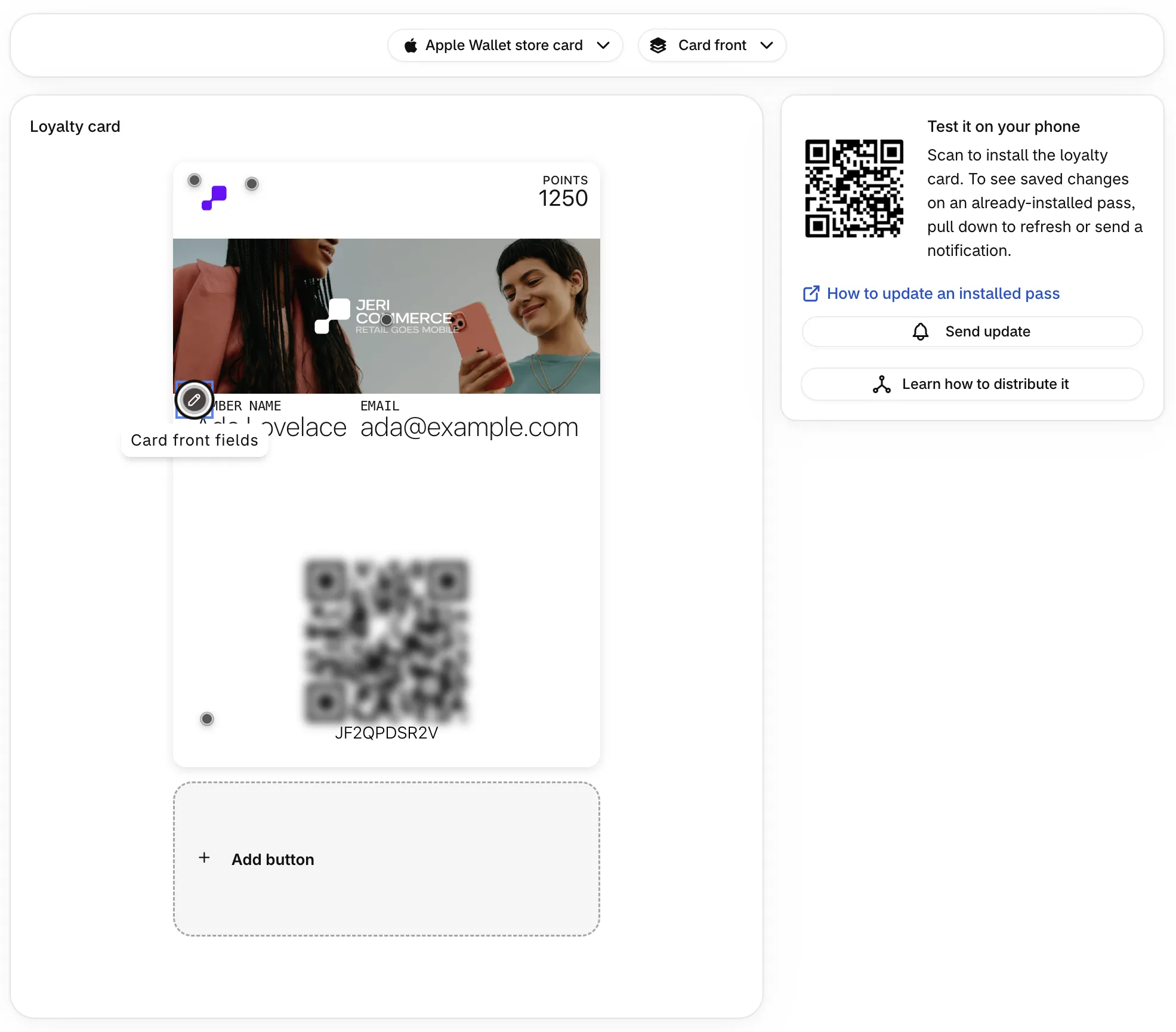
Go to Customize → Loyalty card, choose Apple Wallet store card or Google Wallet loyalty card, and make sure the view shows Card front.
Open the fields
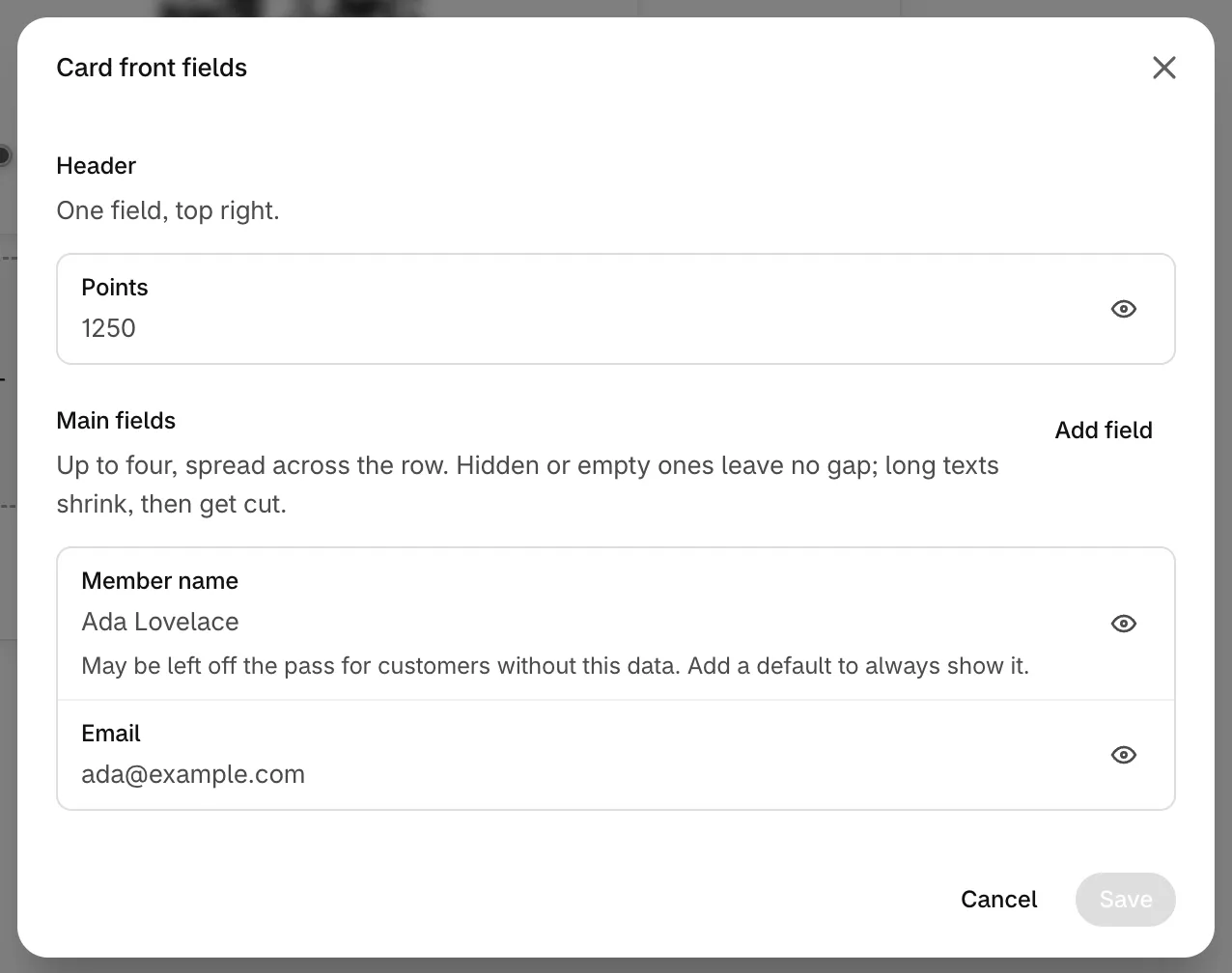
Click the highlighted area over the texts of the card to open Card front fields. Click any field to edit it.
Write the label and the value
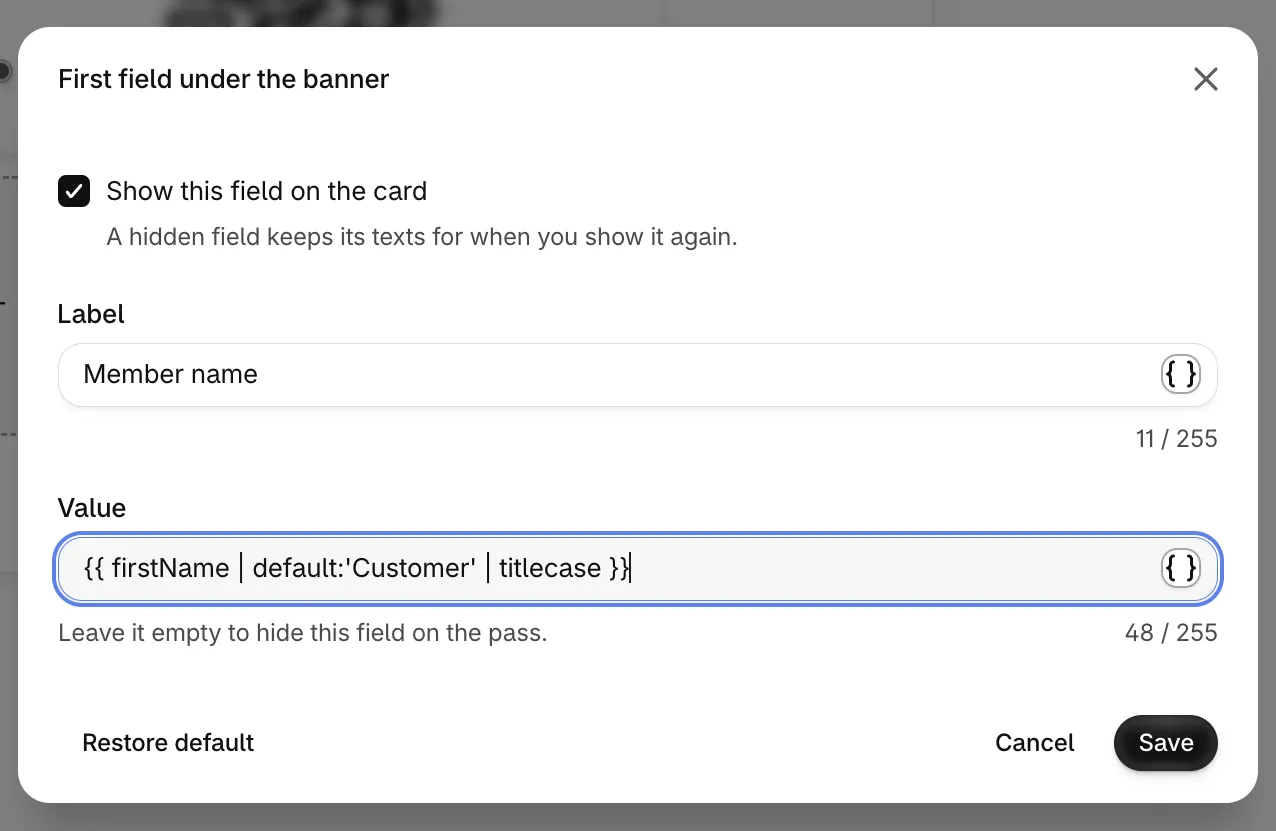
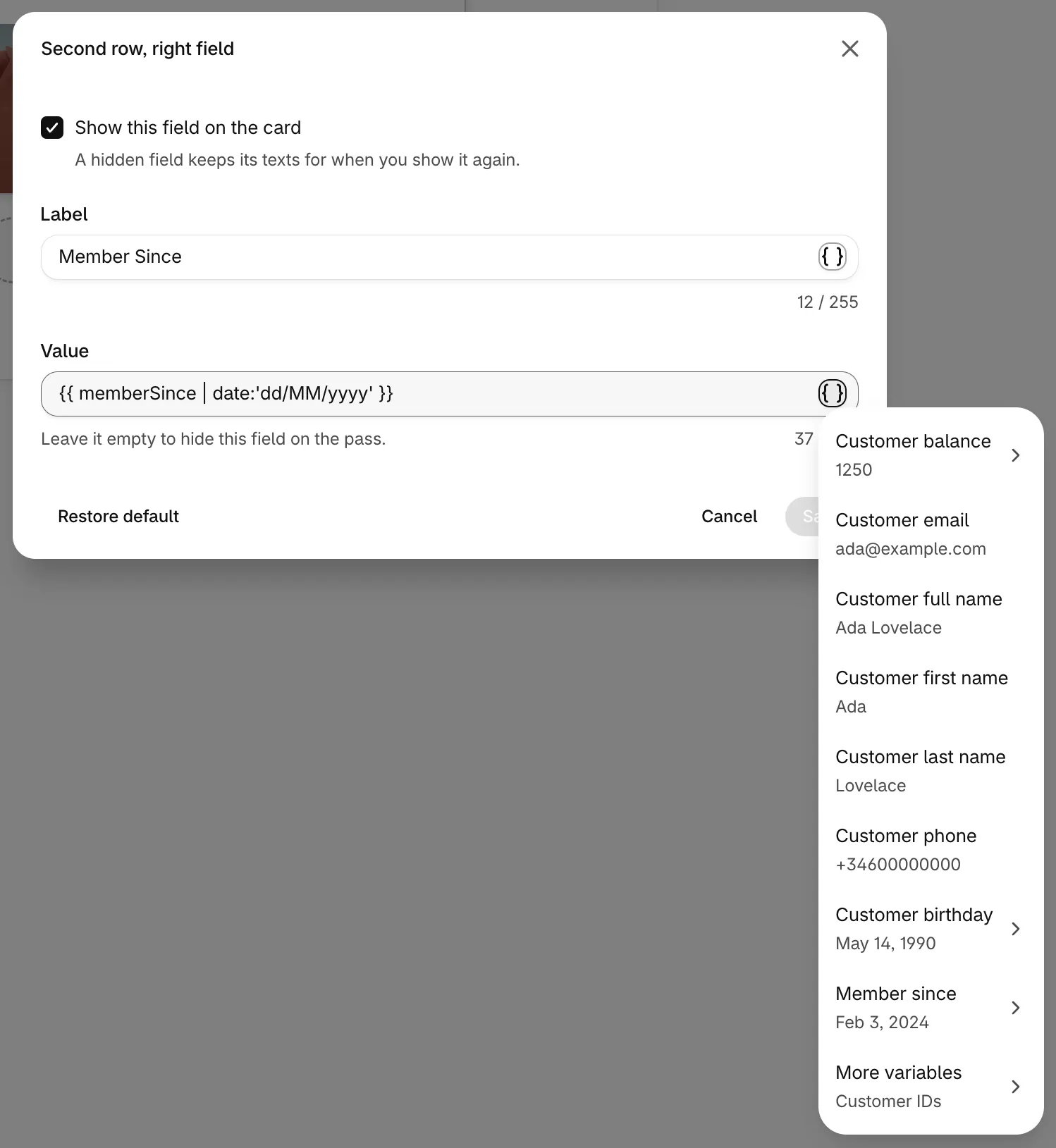
Type text, variables or both in Label and Value. Click the { } icon at the end of each box to pick a variable from a list instead of typing it. For dates and numbers, the list also offers ready-made formats.
Save
Click Save in the field, then Save in Card front fields. Nothing is stored yet: click Save in the save bar at the top of the page to publish the changes. Installed cards update a few minutes later.
The preview in the admin uses sample data (Ada Lovelace, 1250 points, and your first tier or the tier you're editing), so you can check the result before saving.
How a variable is written 
A variable goes between double braces. Spaces inside the braces don't matter, so {{firstName}} and {{ firstName }} are the same.
{{ variable }}
{{ variable | format }}
{{ variable | format:'text' }}
{{ variable | format:'text':'other text' }}
{{ variable | first format | second format }}
- Formats come after a pipe (
|). You can chain several, and they apply from left to right. - Values for a format go after a colon (
:), one colon per value. - Texts go in single or double quotes:
default:'Customer'. Numbers don't need quotes:slice:0:12. - Another variable can be a value without quotes:
default:emailshows the email when the first variable is empty. - Mix freely text and variables in the same box:
Hi {{ firstName }}! - Variable names are case-sensitive:
firstNameworks,firstnamedoesn't. - Write each variable on a single line.
If a variable or format can't be read, the card shows the text exactly as you typed it, braces included. The admin catches these mistakes before you save (see error messages).
Variables you can use on the card front 
These variables work in every label and value on the card front and in the Apple Wallet pass title. The In the { } list column shows the name in the variable picker. A few program texts aren't in the list, but they work when you type them.
| Variable | In the { } list | Example | Notes |
|---|---|---|---|
firstName |
Customer first name | Ada | Can be empty |
lastName |
Customer last name | Lovelace | Can be empty |
name |
Customer full name | Ada Lovelace | First and last name together. Can be empty |
email |
Customer email | ada@example.com | |
phone |
Customer phone | +34600000000 | Can be empty |
birthdate |
Customer birthday | 1990-05-14 | A date. Can be empty |
balance |
Customer balance | 1250 | A number |
balanceName |
Not in the list, type it | Points | Your balance name in plural |
singularBalanceName |
Not in the list, type it | Point | Your balance name in singular |
tierStatus |
Tier status | Gold | Empty for customers without a tier |
tierPoints |
Tier points | 3400 | A number: the points that count toward the tier. 0 for customers without a tier |
tierBalanceName |
Not in the list, type it | Points | Only for programs with tiers |
singularTierBalanceName |
Not in the list, type it | Point | Only for programs with tiers |
memberSince |
Member since | 2024-02-03 | A date |
externalCustomerId |
Customer ID | 7012345678901 | The customer's ID in Shopify or your system |
id |
JeriCommerce customer ID | 0b5e7c2a-... | |
customerId |
Customer ID (JeriCommerce) | 0b5e7c2a-... | Same as id |
The identifiers are under More variables in the list. Tier status and Tier points only appear in the list when your program has tiers.
Links can't go on the card front. Variables such as referralLink, inviteFriendLink or the customer page links (linkCustomerAppRewards and similar) only work on the back of the card and in buttons. The same applies to written web addresses.
Formats (pipes) 
| Format | Values | What it does | Example | Result |
|---|---|---|---|---|
default |
1 | Shows the value you give when the variable is empty | {{ firstName | default:'Customer' }} |
Ada, or Customer |
if |
1 or 2 | Shows the first value when the variable has data, the second (or nothing) when it's empty | {{ tierStatus | if:'VIP member':'Member' }} |
VIP member |
uppercase |
0 | Text in capitals | {{ firstName | uppercase }} |
ADA |
lowercase |
0 | Text in lowercase | {{ email | lowercase }} |
ada@example.com |
titlecase |
0 | First letter of each word in capitals | {{ name | titlecase }} |
Ada Lovelace |
slice |
1 or 2 | Keeps part of a text, from a start position to an end position (counting from 0) | {{ name | slice:0:3 }} |
Ada |
number |
0 or 1 | Adds the thousands separator of the card's language. A value like '1.0-2' sets the decimals |
{{ balance | number }} |
1,250 |
plural |
2 | Shows the first value when the number is 1, the second for any other number, including 0 | {{ balance | plural:'point':'points' }} |
points |
date |
1 | Writes a date with the pattern you give | {{ memberSince | date:'dd/MM/yyyy' }} |
03/02/2024 |
Formats only work on the type of data they expect. date needs a date (birthdate, memberSince), number and plural need a number (balance, tierPoints), and uppercase, lowercase, titlecase and slice need text. default and if work with anything. The admin warns you when a format doesn't fit the variable.
0 is not empty. A customer with 0 points shows 0, not the default value.
Date patterns 
date accepts four ready-made styles that adapt to the card's language, or your own pattern.
| Pattern | English | Spanish |
|---|---|---|
shortDate |
2/3/24 | 3/2/24 |
mediumDate |
Feb 3, 2024 | 3 feb 2024 |
longDate |
February 3, 2024 | 3 de febrero de 2024 |
fullDate |
Saturday, February 3, 2024 | sábado, 3 de febrero de 2024 |
dd/MM/yyyy |
03/02/2024 | 03/02/2024 |
MM/dd/yyyy |
02/03/2024 | 02/03/2024 |
dd.MM.yyyy |
03.02.2024 | 03.02.2024 |
yyyy-MM-dd |
2024-02-03 | 2024-02-03 |
dd/MM |
03/02 | 03/02 |
d MMMM |
3 February | 3 febrero |
In your own patterns, d is the day, dd the day with two digits, MM the month in numbers, MMM the short month name, MMMM the full month name and yyyy the year. Use lowercase yyyy and dd: uppercase YYYY or DD don't give the date you expect, and the card then shows the date as it is stored, for example 1990-05-14 for birthdate.
Numbers 
number uses the separator of the card's language: 1,250 in English, 1.250 in German. Spanish and Italian only add it from five digits (12.500). Without a value it shows up to three decimals. Your balance is a whole number, so {{ balance | number }} is usually enough. To force decimals, add a value with the pattern '{minimum digits}.{minimum decimals}-{maximum decimals}', for example number:'1.0-0' for no decimals.
Recipes 
Copy these into Value or Label and adapt the texts.
| What you want | Write |
|---|---|
| First name, or a fallback when it's missing | {{ firstName | default:'Customer' | titlecase }} |
| Points label that changes between singular and plural | {{ balance | plural:singularBalanceName:balanceName }} |
| Points with a thousands separator | {{ balance | number }} |
| Tier points with their name | {{ tierPoints | number }} {{ tierPoints | plural:singularTierBalanceName:tierBalanceName }} |
| Birthday as day and month | {{ birthdate | date:'d MMMM' }} |
| Member since, written out | Member since {{ memberSince | date:'mediumDate' }} |
| A long name cut to fit | {{ name | slice:0:18 }} |
| The tier, or the email when there's no tier | {{ tierStatus | default:email }} |
| A label that depends on the tier | {{ tierStatus | if:'Tier Status':'Email' }} |
| A greeting in capitals | HI {{ firstName | default:'there' | uppercase }} |
Default content of each field 
Every field starts with built-in content, and the built-in labels are translated for you. Restore default puts them back.
| Wallet | Field | Default label | Default value |
|---|---|---|---|
| Apple | Top right field | {{ balance | plural:singularBalanceName:balanceName }} |
{{ balance }} |
| Apple | First field under the banner | Member name | {{ name }} |
| Apple | Second field under the banner | {{ tierStatus | if:'Tier Status':'Email' }} (Tier Status, or Email without a tier) |
{{ tierStatus | default:email }} |
| Apple | Third and Fourth field under the banner | Empty | Empty, hidden until you set them up |
| Apple Poster | Poster footer | Member Since | {{ memberSince | date:'dd/MM/yyyy' }} |
| First row, left field | {{ balance | plural:singularBalanceName:balanceName }} |
{{ balance }} |
|
| First row, right field | Tier Status | {{ tierStatus }} |
|
| Second row, left field | Member name | {{ name }} |
|
| Second row, right field | Member Since | {{ memberSince | date:'dd/MM/yyyy' }} |
Rules on the card front 
- An empty value hides the field. When the Value turns out empty for a customer, for example
{{ phone }}for someone without a phone, the field doesn't appear on their card. The admin warns with "May be left off the pass for customers without this data. Add a default to always show it." Adddefaultto always show something. - 255 characters at most per label or value. The pass title allows 80, on Apple Wallet and Google Wallet.
- No links. Links and web addresses are rejected on the front. Put them in a section on the back or in a button.
- Apple Wallet row. The four fields under the banner share one row from the left. Hidden or empty fields leave no gap. Long texts shrink, then get cut, so keep values short.
- Google Wallet rows. Each row has two fields. If one is empty, the other starts the row, and an empty row is left out.
- Tiers. A tier design can change any field, or show a field the default design hides. See designs for tiers.
- Updates. Installed cards get a new design about five minutes after you save. When a customer's data changes, like their points, tier points or tier, their card updates within seconds.
Translations 
To translate labels and values, choose the language with the language button below the preview, then open Card front fields. The dialog shows the language you're translating. Only your own texts change between languages. Keep variable names, format names and patterns exactly as they are. Translate only the texts in quotes, for example default:'Cliente'. If you show tier points, also keep the tier points variable in your default text: when it only appears in a translation, the card doesn't update when the customer's tier points change.
Dates and numbers follow the language of each text. {{ memberSince | date:'longDate' }} shows "February 3, 2024" in English and "3 de febrero de 2024" in Spanish. Google Wallet does this for every language. On Apple Wallet, a text is only formatted in another language once you add a translation for it, even if the translation is the same text.
The values of the first row on Google Wallet (First row, left field and First row, right field) show the same text in every language, written in your default language. See translate wallet sections.
Other places that use variables 
The back of the card, button links and automatic push messages also accept variables between double braces, and they resolve the same formats. There, the admin doesn't check formats as you type, so test the result on a card. Link variables (referralLink, inviteFriendLink, linkCustomerAppRewards, linkCustomerAppProfile and the other customer page links) are allowed in back sections, buttons and automatic push messages. The text of campaign push notifications only accepts referralLink and inviteFriendLink. The Google Wallet title is plain text and doesn't use variables.
Error messages 
The admin checks each label and value while you type and shows the problem under the box.
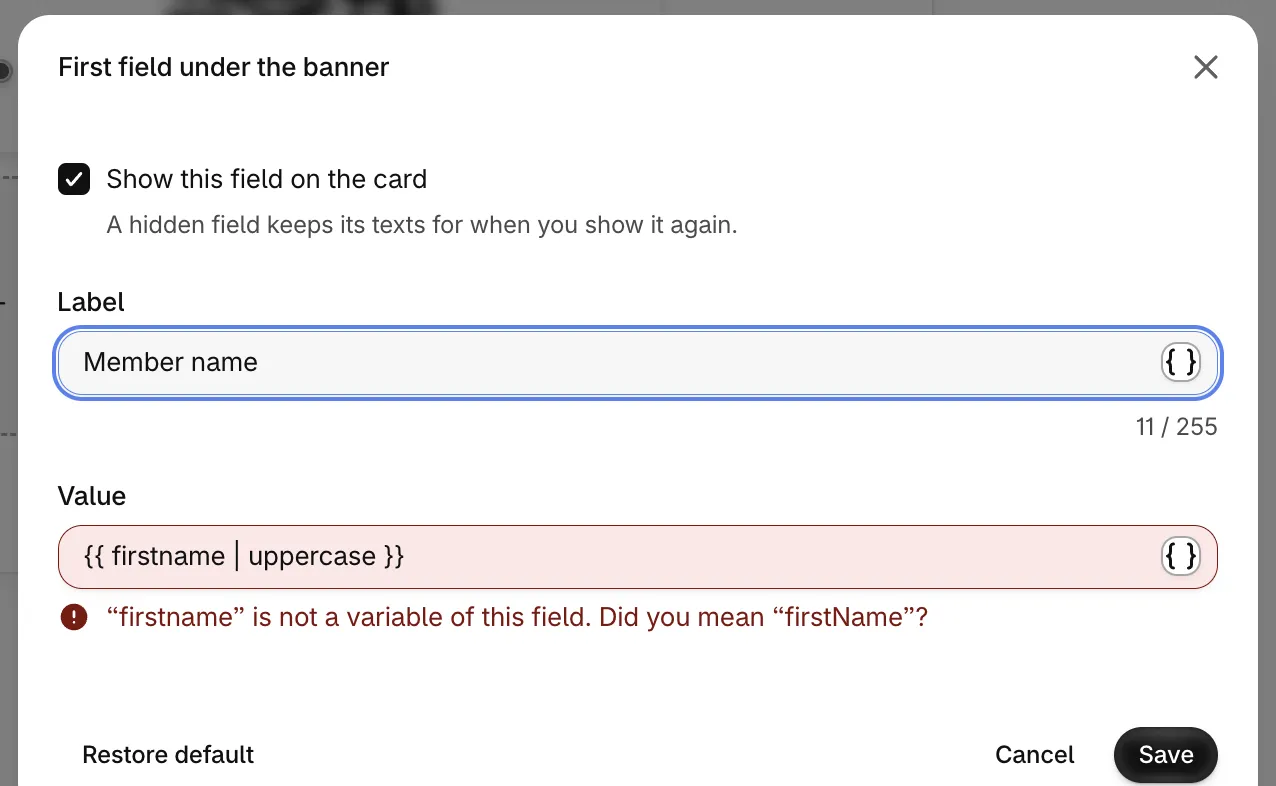
| Message | What to do |
|---|---|
| Close the variable with its two closing braces. | Add the missing }}. |
| Check "...": a variable, then its formats, with texts in quotes. | Write the variable first, then | and the format. Put texts in quotes. |
| "x" is not a variable of this field. Did you mean "y"? | Fix the spelling or the capital letters, or pick the variable from the { } list. |
| "x" is not a variable of this field. | The variable doesn't exist on the card front. Check the variable table. |
| "x" is not a format. | Use one of the nine formats. |
| "x" only applies to dates / numbers / texts. | Use the format with a variable of the right type. |
| "x" needs 2 values. / "x" needs 1 value. | Add the missing values after colons, for example plural:'point':'points'. |
| "x" takes up to 2 values. / "x" takes up to 1 value. / "x" takes no values. | Remove the extra values. |
| Put "x" in quotes, or use a variable. | Add quotes around the text, or write a valid variable name. |
| The front of the pass shows content only. Add links in a section on the back or in a button. | Remove the link or the link variable. |