Notifications in user wallets are handled differently between iOS and Android. Here's how to troubleshoot when notifications aren't coming through.
Check JeriCommerce Settings First
Start by making sure all notifications are turned on in our platform:
Open the pass in the wallet
Find the loyalty card in Apple Wallet or Google Wallet.
Find the links
On iOS, look at the back of the card. On Android, scroll to the bottom.
Go to the profile
Tap "View all rewards" or "View Profile", then go to the "Profile" tab in the web app.
Turn on all notification switches
Make sure every toggle in the Notification Settings section is active.
If that doesn't fix it, the issue is likely at the device level. Follow the instructions for each platform below.
iOS
- Check the wallet pass level first. At the back of the wallet, you'll find toggles for automatic updates and notifications. Both should be active.
- Check the device-level settings:
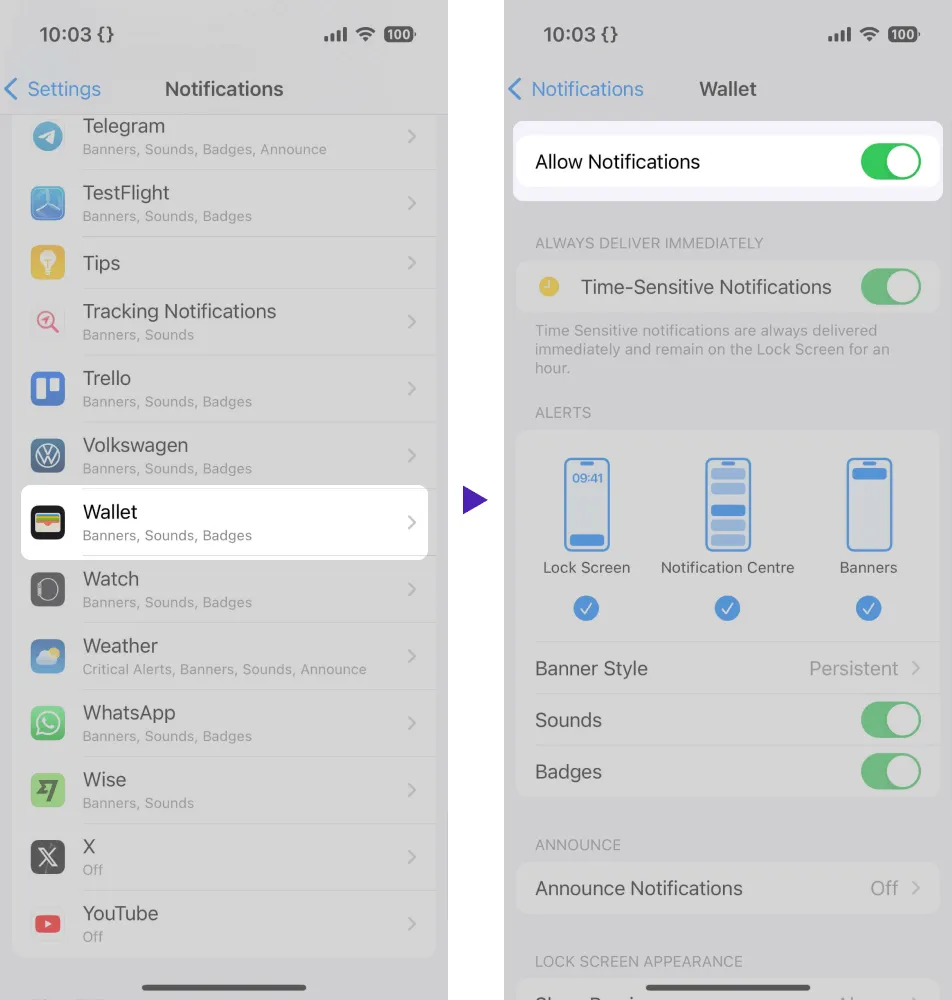
- Go to Settings > Notifications > Wallet
- Make sure the main "Allow Notifications" toggle is active and all other options make sense for your setup.
Android
The exact steps may vary depending on the device version, but the setting is always at the device level:
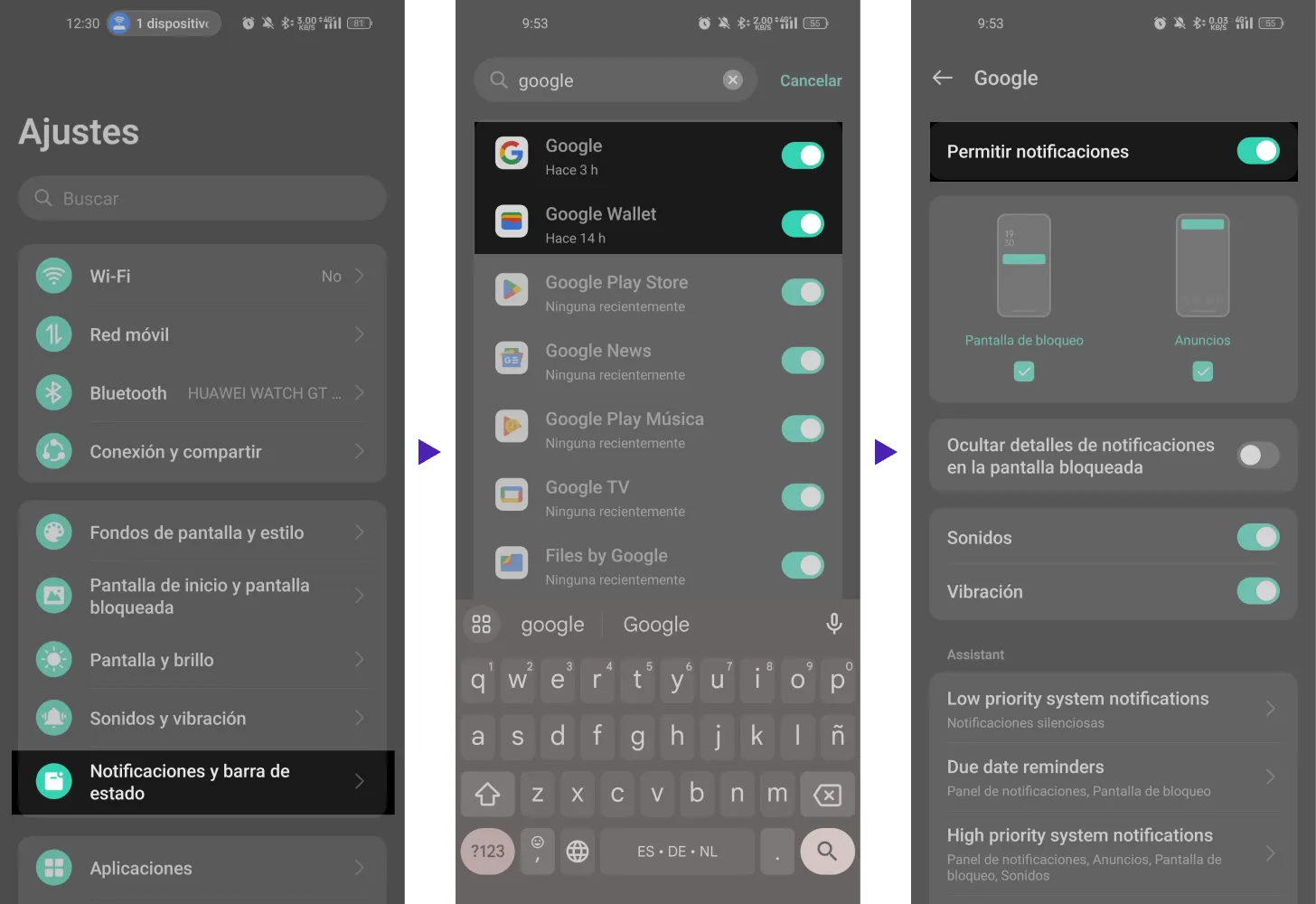
- Go to Settings > Notifications and Status Bar
- Find the Google Wallet app and make sure the main "Allow Notifications" toggle is active.
For location-based campaigns on Android, make sure the campaign targets Google Wallet and uses GPS locations. Google Wallet does not support iBeacon devices or custom on-screen campaign messages.