Shopify now lets you configure the POS smart grid from Shopify Admin > Point of Sale > Settings > POS app. Open the POS editor, choose the smart-grid page used by your store, and make sure the JeriCommerce scanner tile is present. Depending on your app version, it may be labelled Customer Scanner | Identify a customer by QR or NFC or Scan Wallet Pass.
To use the full JeriCommerce workflow in your Shopify POS, add the tiles available to your version:
- Customer Scanner | Identify a customer by QR or NFC or Scan Wallet Pass – to identify the customer via their wallet pass.
- Update Wallet Balance – to update loyalty points only if you're using JeriCommerce Loyalty.
- Customer Rewards: to instantly apply points and discounts without leaving checkout.
The labels and available tiles can vary between JeriCommerce versions. Add the scanner at minimum; add Customer Rewards for redemption and Update Wallet Balance for manual adjustments when those tiles are available in your account.
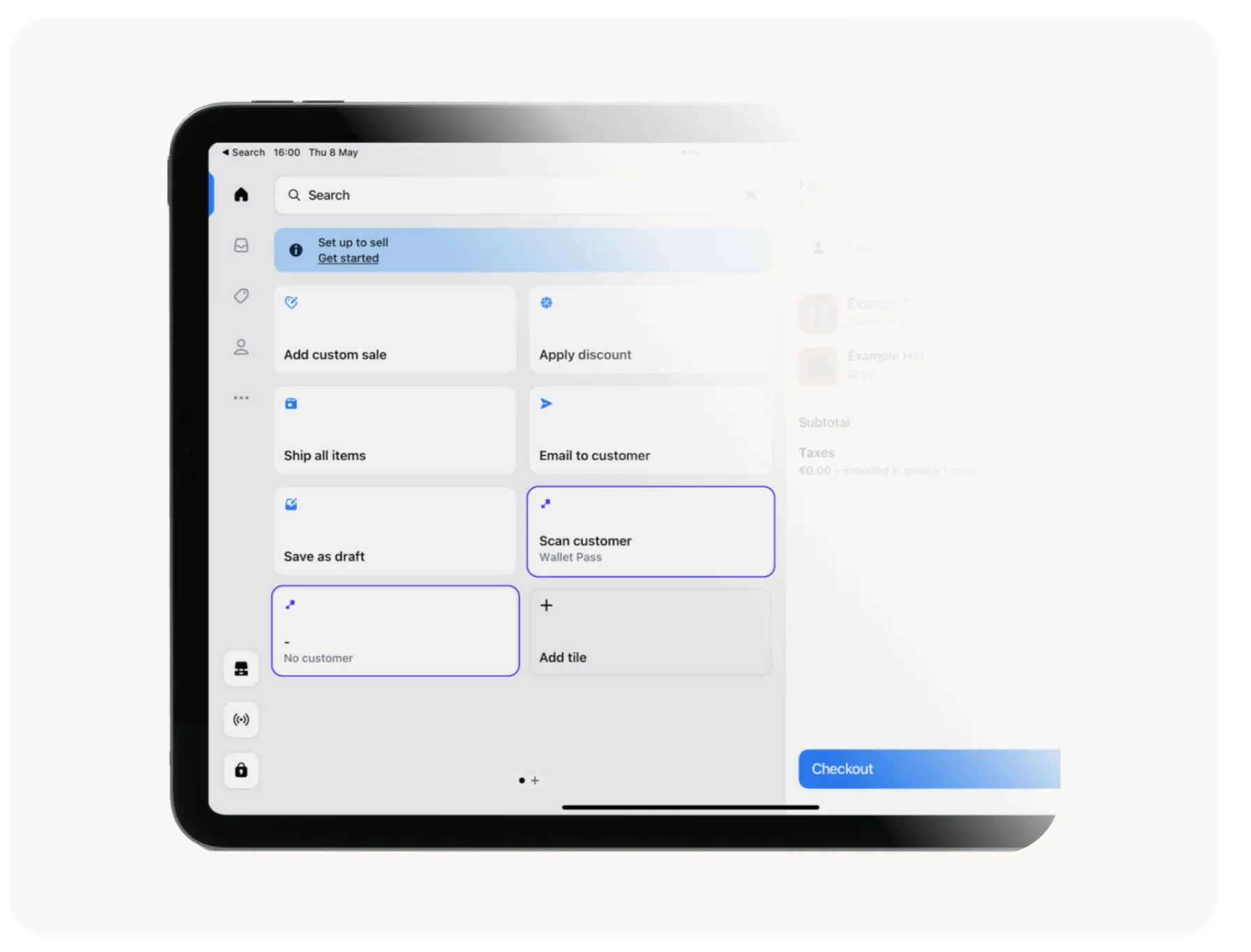
Steps to Add the Tiles
1
Open the POS editor
In Shopify Admin, go to Point of Sale > Settings > POS app and open the POS editor. If your Shopify POS version still exposes the in-app editor, open ≡ Menu > Customize smart grid (or Customize on the home screen) instead.
2
Choose the smart-grid page
In the Shopify Admin editor, open Sections and select the page where you want the JeriCommerce tiles, such as Page 1. In the in-app editor, select the corresponding smart-grid page.
3
Add a new tile
Select Add tile, choose App, and select JeriCommerce.
4
Add the JeriCommerce tiles
Add the following tiles:
- Customer Scanner | Identify a customer by QR or NFC or Scan Wallet Pass
- Update Wallet Balance (only works with JeriCommerce Loyalty, when available)
- Customer Rewards (when available)
5
Save your changes
Select Save to confirm the changes.
Once added, your staff will be able to scan customer passes and, if applicable, update their loyalty balance directly from the POS.
For applying discounts, scan the QR same way as the loyalty card or apply the discount available in their reward manually through the discount application.