To get the Jericommerce app working, you first need to add your LoyaltyLion integration in Settings > Integrations > LoyaltyLion.
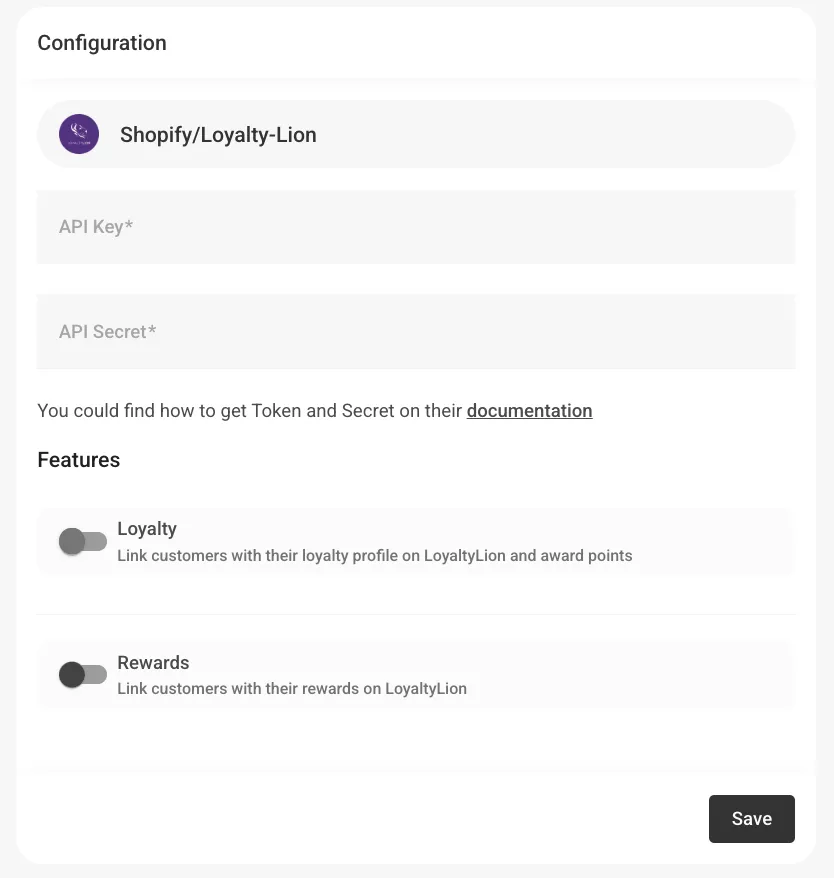
Here's a step-by-step guide on how to find the API-key and the API Secret on their platform, and save them on our platform:
1
Open LoyaltyLion in Shopify
Open your LoyaltyLion app in Shopify.
2
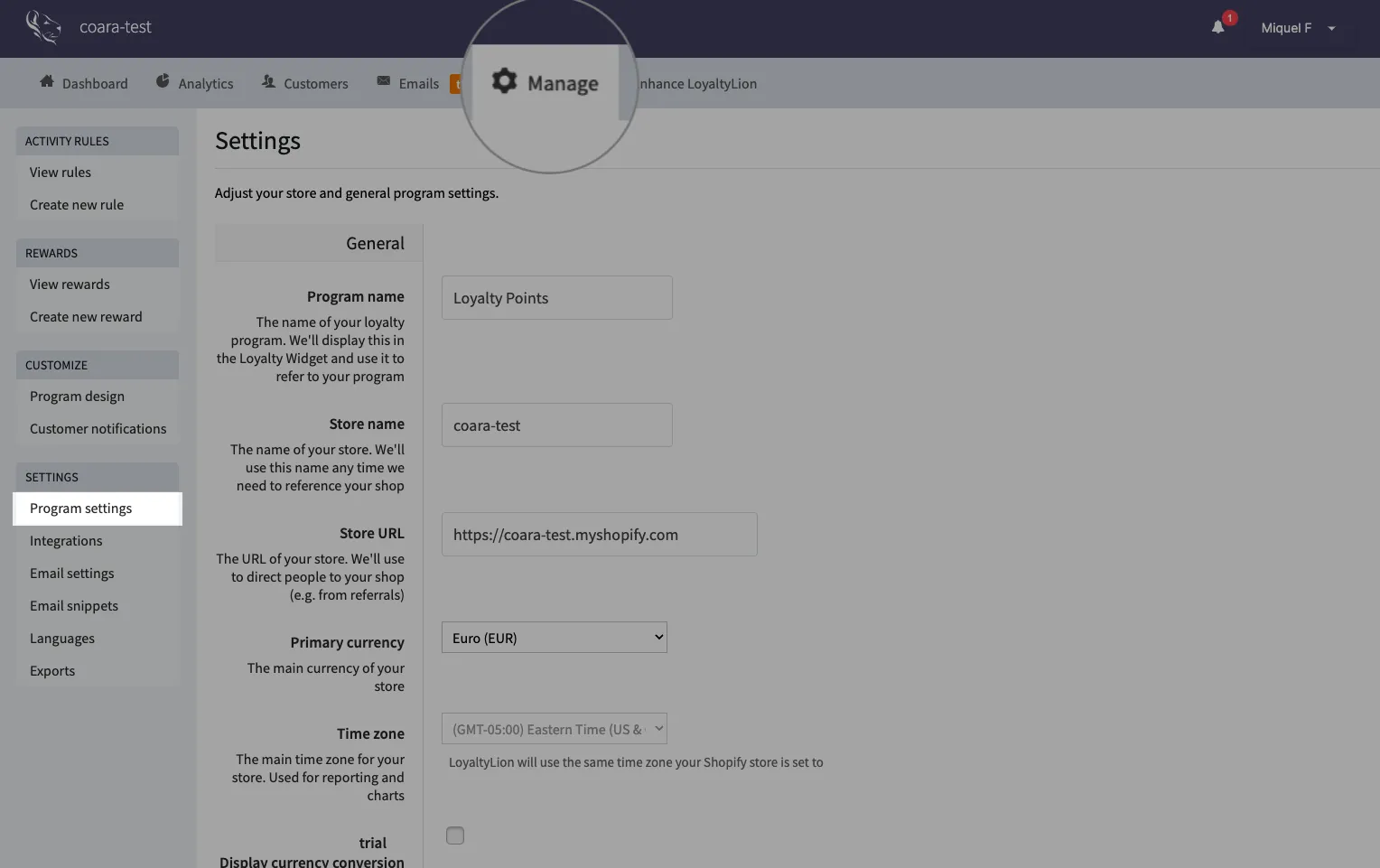
Go to Program Settings
Go to Manage > Program Settings in the top bar.
3
Create an API key
Scroll to the API keys section and click Create API key. Give your key a name (for example, "Jericommerce Integration").
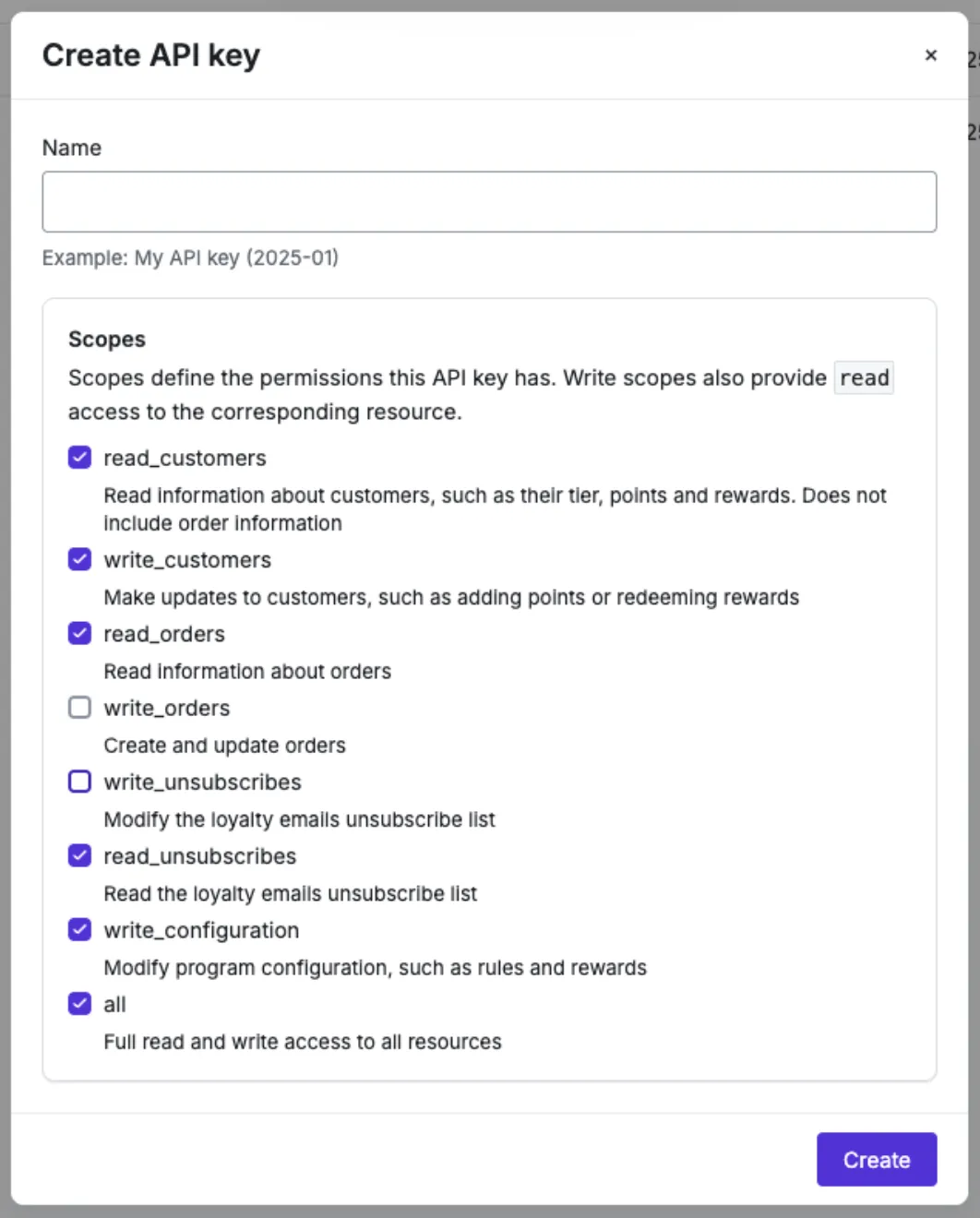
Create API Key on Loyalty Lion Program Settings
Choose the following permissions (scopes):
- read_customers
- write_customers
- read_orders
- read_unsubscribes
- write_configuration
- all
Click Create.
4
Copy your credentials
Copy your API Key and API Secret.
5
Paste credentials in JeriCommerce
Go back to your Jericommerce dashboard and paste these values into the Shopify/LoyaltyLion configuration fields.
6
Turn on features and save
Turn on the features you need (Loyalty and/or Rewards) and click Save.
Your LoyaltyLion integration is now connected — you can start linking customers' profiles, points, and rewards directly to their wallet passes.