This action gives a coupon to a customer when something happens in another tool: a purchase in Shopify, a segment entry or email click in Klaviyo, or an event in your own system.
Before you start, create the coupon in JeriCommerce and copy its Campaign slug. All three channels use it to know which coupon to give.
What happens 
- The customer gets a code from the coupon's discount: the next code from your uploaded batch, or a new single-use Shopify code if the discount creates on-demand Shopify codes.
- The customer receives an email with the code and a wallet notification with the coupon's message.
- A Coupon assigned event with the
codeis sent to your events webhook. - You can replace the coupon's title and text for this customer, for example to add their name. Coupon analytics keep working as usual.
The coupon is not assigned when:
- The coupon is inactive, finished, or deleted.
- The customer already received it as many times as the coupon allows.
If the coupon's discount runs out of codes, JeriCommerce turns the coupon off, and later assignments are skipped until you add codes and reactivate it. Keep an eye on the remaining codes when you assign coupons automatically.
Set it up 
Use the JeriCommerce Assign a coupon action in any Shopify Flow workflow.
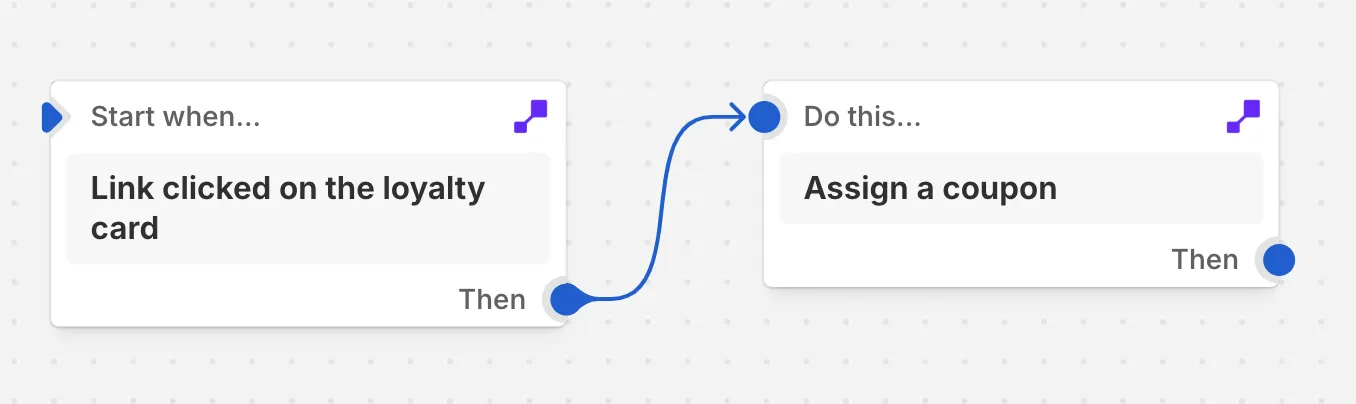
Choose a Shopify trigger
In Shopify, open Flow, create a workflow, and choose the trigger that should send the coupon.
Add the action and fill in the fields
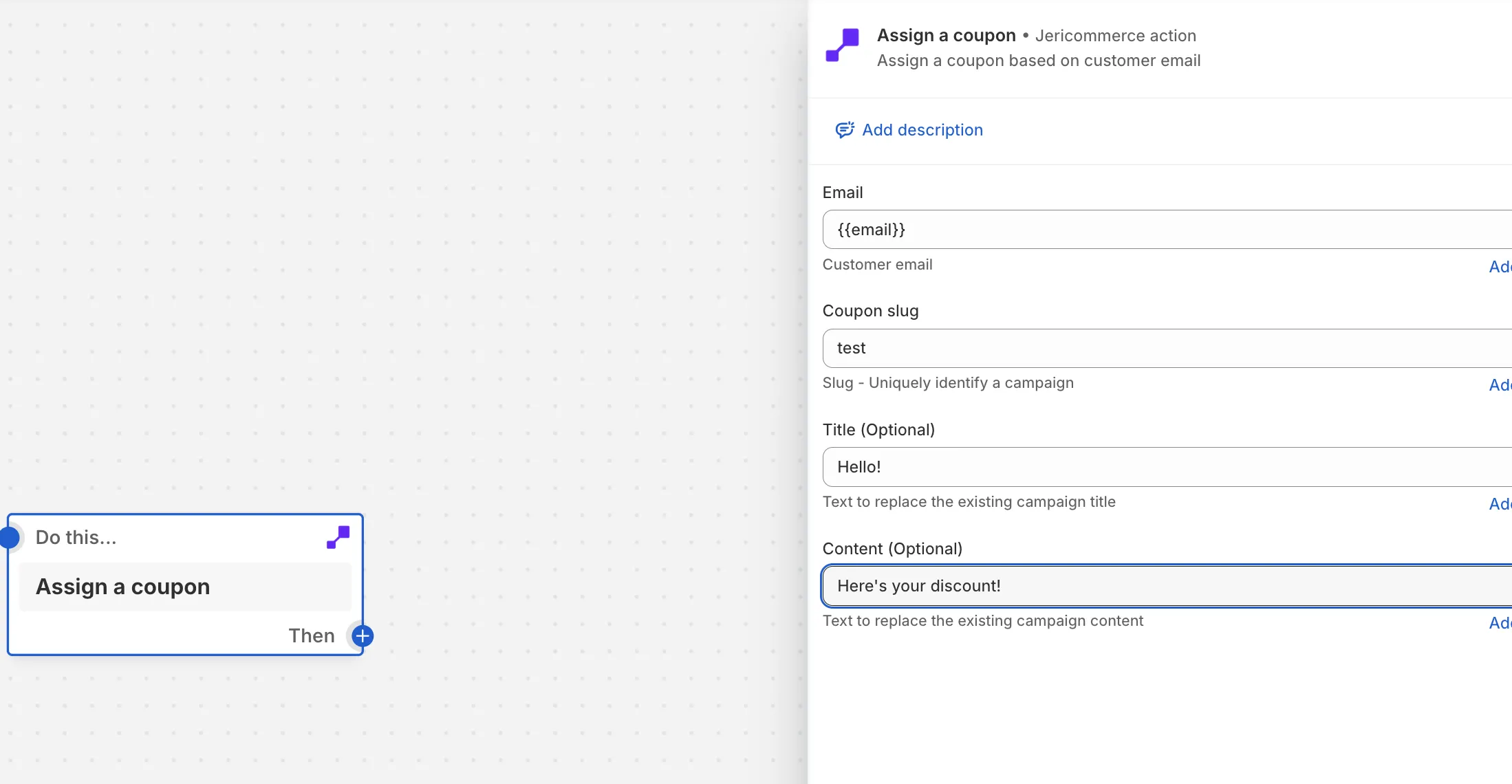
Add Assign a coupon and fill in:
- Email: the customer's email. Use Add variable to pick it from the trigger.
- Coupon slug: the coupon's Campaign slug from JeriCommerce.
- Title and Content (optional): replace the coupon's title and text for this customer.
Turn on the workflow
Save and turn on the workflow. The coupon is assigned each time the trigger runs.
The coupon is assigned while the workflow runs. If it can't be assigned, the step fails and the reason appears in the workflow's run history.
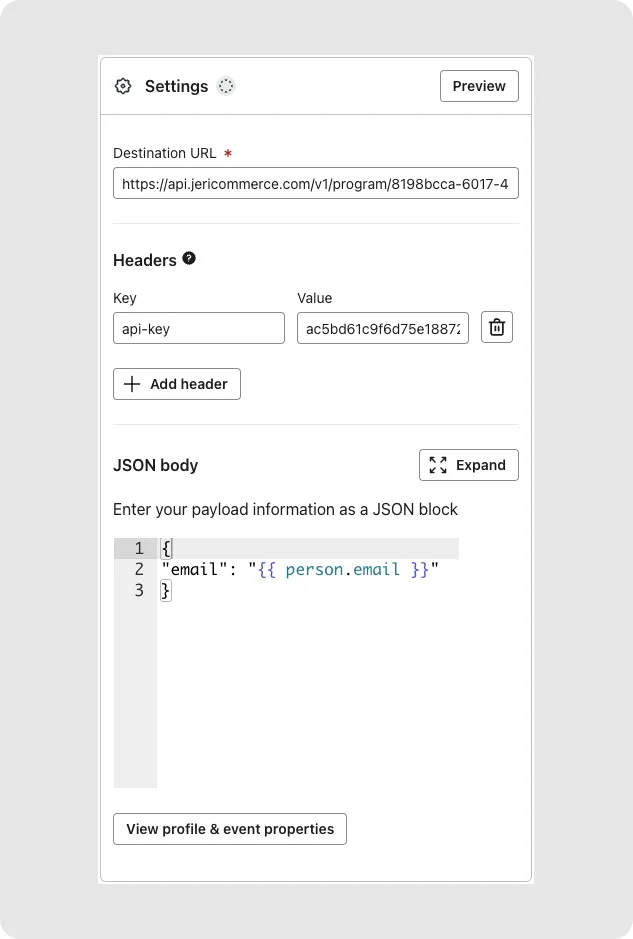
Add a Webhook action to your Klaviyo flow. Fill in the builder below and copy each value into the webhook settings.
Your details
Find it in Settings > Technical > Program Information.
Create one in Settings > Technical > API Keys. It stays in your browser.
Action details
Copy the Campaign slug from the coupon in Loyalty > Coupons.
Replaces the coupon title for this customer.
Replaces the coupon text for this customer.
Copy and paste into Klaviyo
https://api.jericommerce.com/v1/programs/your-program-slug/coupon/assignapi-keyyour-api-key[
{
"email": "{{ person.email|default:'' }}",
"slug": ""
}
]Use Klaviyo variables in the title or content to personalize the coupon, for example "{{ person.first_name }}, here is a gift for your loyalty".
Klaviyo webhooks are queued: JeriCommerce assigns the coupon a few seconds later, and Klaviyo is not told if the assignment is skipped.
POST https://api.jericommerce.com/v1/programs/{program_slug}/coupon/assign
Send your API key in the api-key header. See Authentication through the API. The body is an array of up to 100 items:
[
  {
    "email": "customer@example.com",
    "slug": "welcome-coupon",
    "header": "Ana, here is a gift for your loyalty"
  }
]
| Field | Type | Required | Notes |
|---|---|---|---|
email |
string | Yes | Email of a customer already in the program. |
slug |
string | Yes | The coupon's Campaign slug. |
header |
string | No | Replaces the coupon's title for this customer. |
body |
string | No | Replaces the coupon's text for this customer. |
The API answers 201 with an empty body as soon as the request is valid, and assigns the coupon a few seconds later. Skipped assignments are not reported. See queued endpoints.
| Code | Status | Meaning |
|---|---|---|
MAX_ITEMS_PER_REQUEST_EXCEEDED |
400 |
The array has more than 100 items. |
| Validation errors | 400 |
email or slug is missing. |
Build a ready-to-run request with your own values:
Your details
Find it in Settings > Technical > Program Information.
Create one in Settings > Technical > API Keys. It stays in your browser.
Action details
Copy the Campaign slug from the coupon in Loyalty > Coupons.
Replaces the coupon title for this customer.
Replaces the coupon text for this customer.
Your request
curl --request POST \
  --url 'https://api.jericommerce.com/v1/programs/your-program-slug/coupon/assign' \
  --header 'api-key: your-api-key' \
  --header 'Content-Type: application/json' \
  --data '[
  {
    "email": "customer@example.com",
    "slug": ""
  }
]'
Paste it in a terminal to test the request with your program.