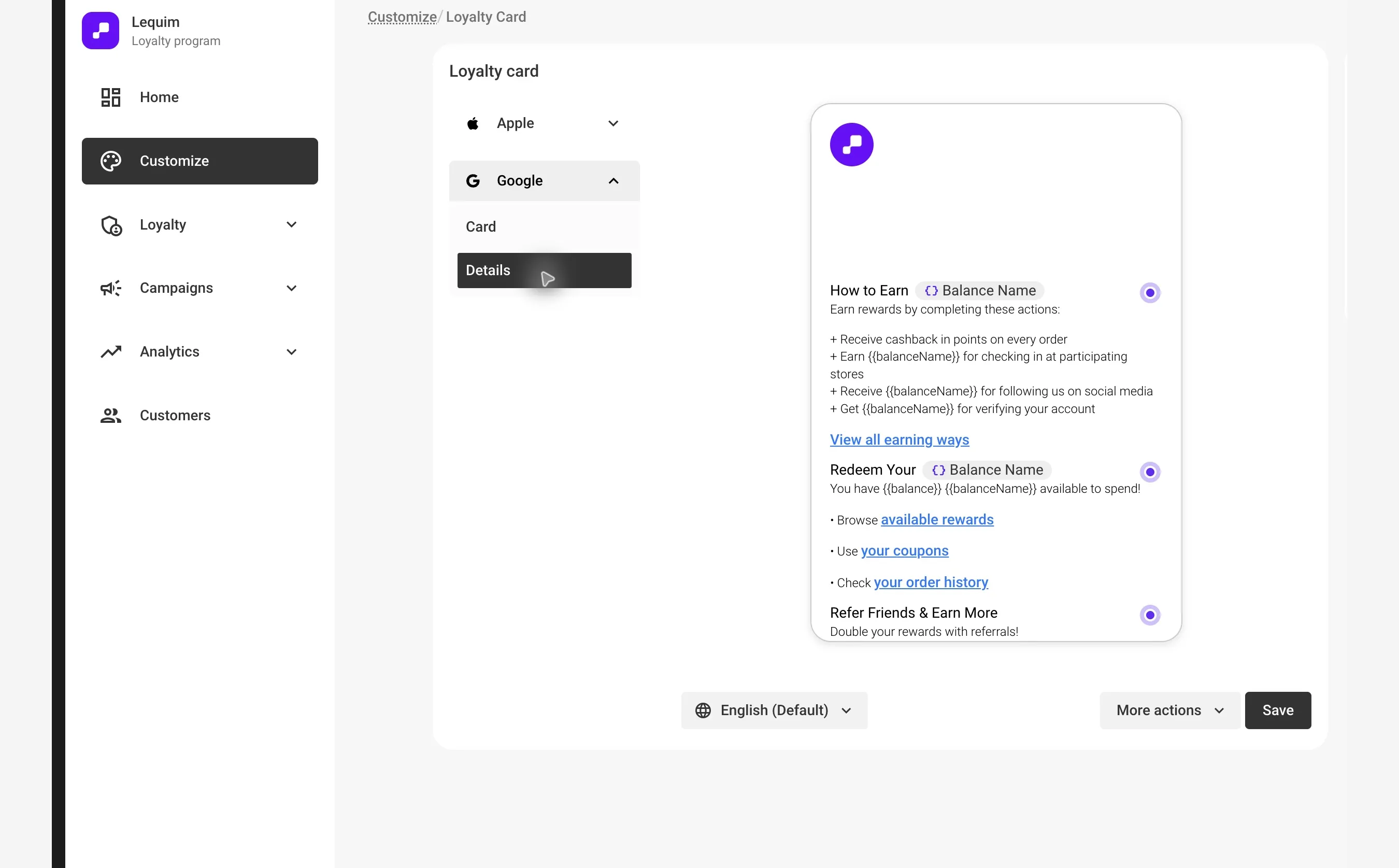
Use the Details view to personalize the content on the back of a digital loyalty card. Add sections to link customers to useful pages, explain your program, or show customer data such as a name or membership number.
Step-by-Step Instructions
Choose a Wallet and Open Details
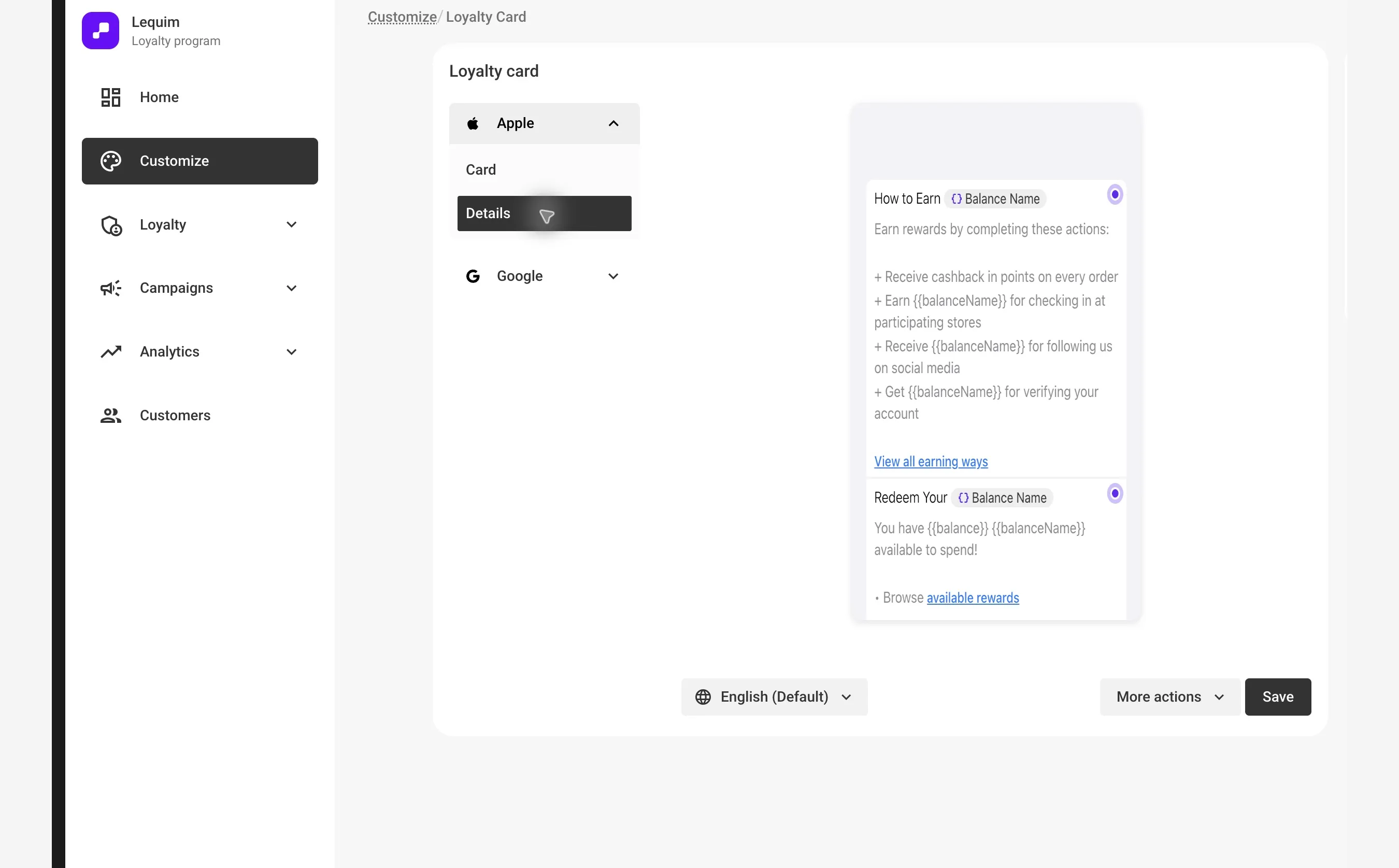
In Customize → Loyalty card, choose Apple or Google, then click Details. Each wallet has its own card and details settings, so review both platforms.
Add a New Section
Click Add section to add content to the pass. Select a section or its edit control in the preview to update it.
Set Up the Section
Each section includes a label and content:
- Label — The section title (e.g., Loyalty Program, Rewards, Your Profile).
- Content — The information or links you want to display. You can:
- Add plain text
- Insert clickable links
- Use formatting (bold, italic, underline, strikethrough)
- Add dynamic customer fields, such as a name or member number
Reorder Sections
Use the controls in the editor to reorder sections. Their order in the editor matches how they appear in the wallet.
Delete a Section
Use the section's remove control to delete it.
Preview Your Changes
Changes appear in the preview. Switch between Apple and Google to review both wallet passes, then click Save.
Section Ideas
Here are some common use cases for the back of the wallet:
- Introduction to the Loyalty Program — A short explanation of how the program works and how customers earn points.
- Link to Rewards Page — "View available rewards" linking to a page where customers can redeem points.
- Link to User Profile — Let customers view or update their profile or account preferences.
- Referral Program — Include a link to invite friends and earn rewards.
- Nearest Store or Store Locator — Link customers to a map or store finder page.
- New Collections or Drops — Announce new product collections with a link to shop.
- Social Media Links — Encourage customers to follow your brand on Instagram, TikTok, or other channels.
- Customer Support — Add a contact link or help center article for assistance.