Choose the result you want to launch and follow the short setup path. Each guide starts with a simple example and links to the detailed documentation only when you need it.
Use the JeriCommerce Loyalty guides if you are creating a new points program. If you already use LoyaltyLion, connect that program through its integration guide. If your existing loyalty platform is managed by your team, use the API integration checklist so JeriCommerce receives the customer and loyalty data from your current system.
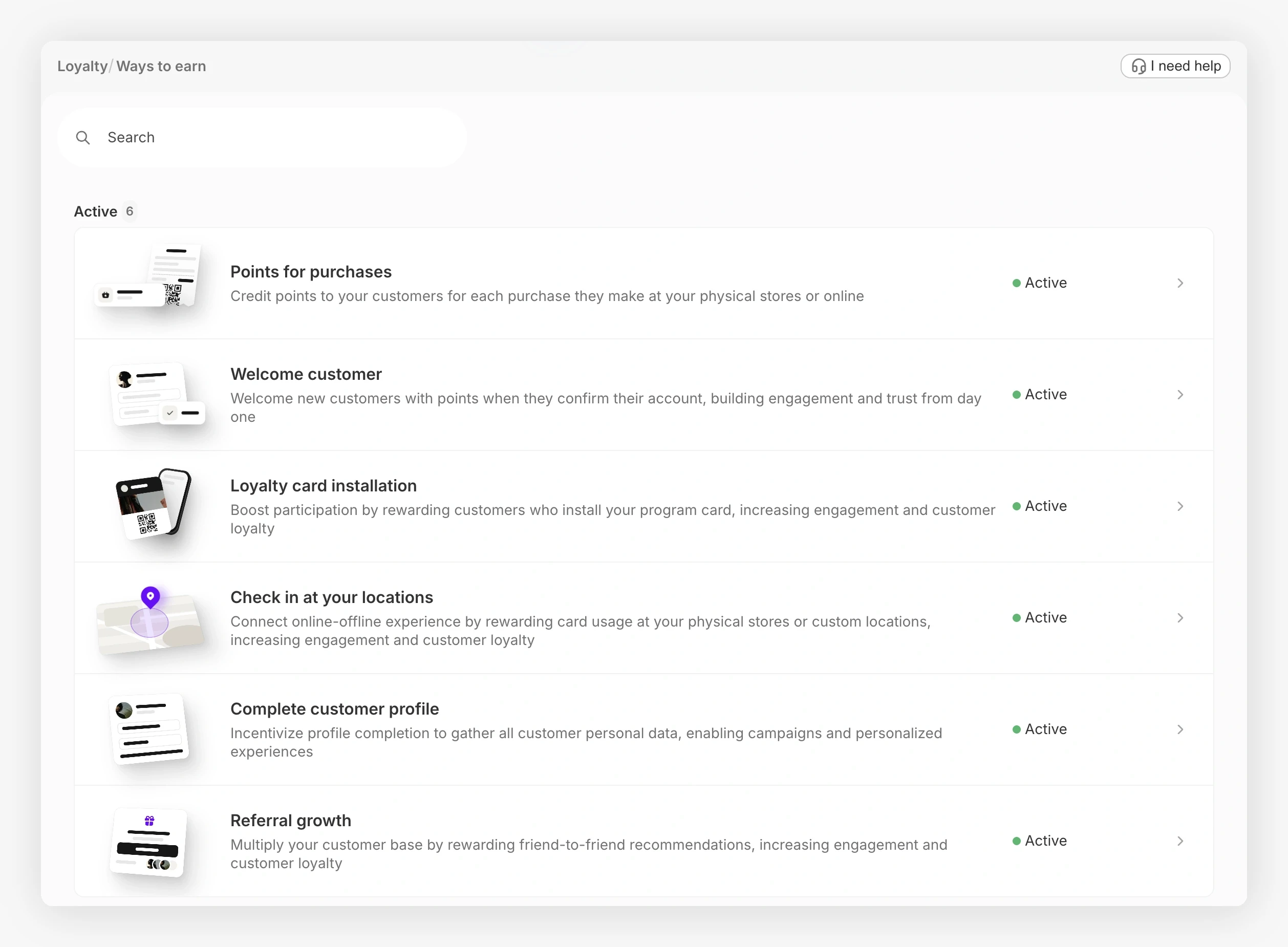
Spend X, get Y
Give points for purchases and turn them into a clear fixed reward.
Shopify POS loyalty
Identify customers, award points, and redeem rewards at the register.
Cashback or store credit
Rename points as a currency and build a predictable reward ladder.
Migrate from another app
Prepare your data and let the JeriCommerce team handle the CSV import.
Digital stamp card
Create a “buy 10, get 1 free” experience with the current points and tier tools.
Start with one use case, test it with a staff account, and only then publish it to customers. After onboarding, use the Home setup guides to track the online and physical store tasks that apply to your business. When you use JeriCommerce Loyalty, you can combine several guides later because they use the same loyalty balance.
Before you start 
- Install JeriCommerce from the Shopify App Store.
- Choose whether you will use JeriCommerce Loyalty or an existing provider such as LoyaltyLion.
- Have admin access to Shopify and JeriCommerce.
- Decide what customers earn, what they can redeem, and where they will see the program: the Shopify Loyalty Hub, the wallet pass, Shopify POS, or a combination.
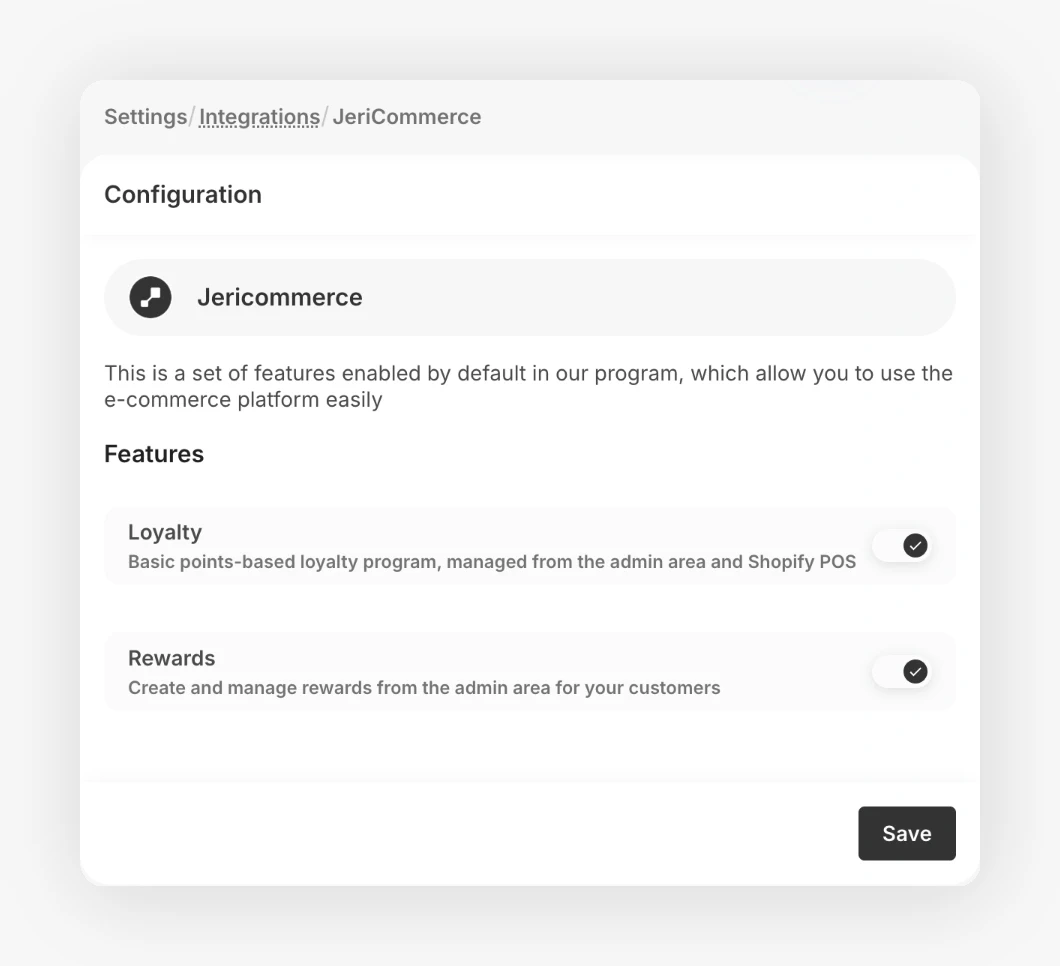
For the built-in loyalty path, open Settings > Integrations > JeriCommerce, turn on Loyalty, and click Save. Turn on Rewards as well if the use case includes a redeemable reward. The exact screen is shown below.
The menu names in these guides refer to the JeriCommerce built-in loyalty program. If LoyaltyLion manages your points, use the integration-specific setup instead of creating a second earning flow.