JeriCommerce supports multilingual loyalty programs. Once you turn on the languages you want to offer, your rewards, earning flows, wallet pass sections, push campaigns, automatic push notifications, and automatic emails can all be translated so each customer sees content in their preferred language.
Supported languages: English, Spanish, German, French, Italian, Bulgarian, Catalan, and Hungarian.
For new Shopify programs, JeriCommerce mirrors the store's published Shopify languages when they are supported.
How it works at a glance
- You set the languages your program supports in Settings → Customer Flows → Languages, with one of them as the default.
- You write your content (reward titles, earning flow descriptions, wallet sections, campaign messages, notification messages) in the default language.
- From any translatable screen, you open the language picker, switch to another language, and add translations. You can also let JeriCommerce auto-translate them for you.
- When a customer opens their loyalty card, JeriCommerce picks the right language for them automatically.
Set up your program languages
Open language settings
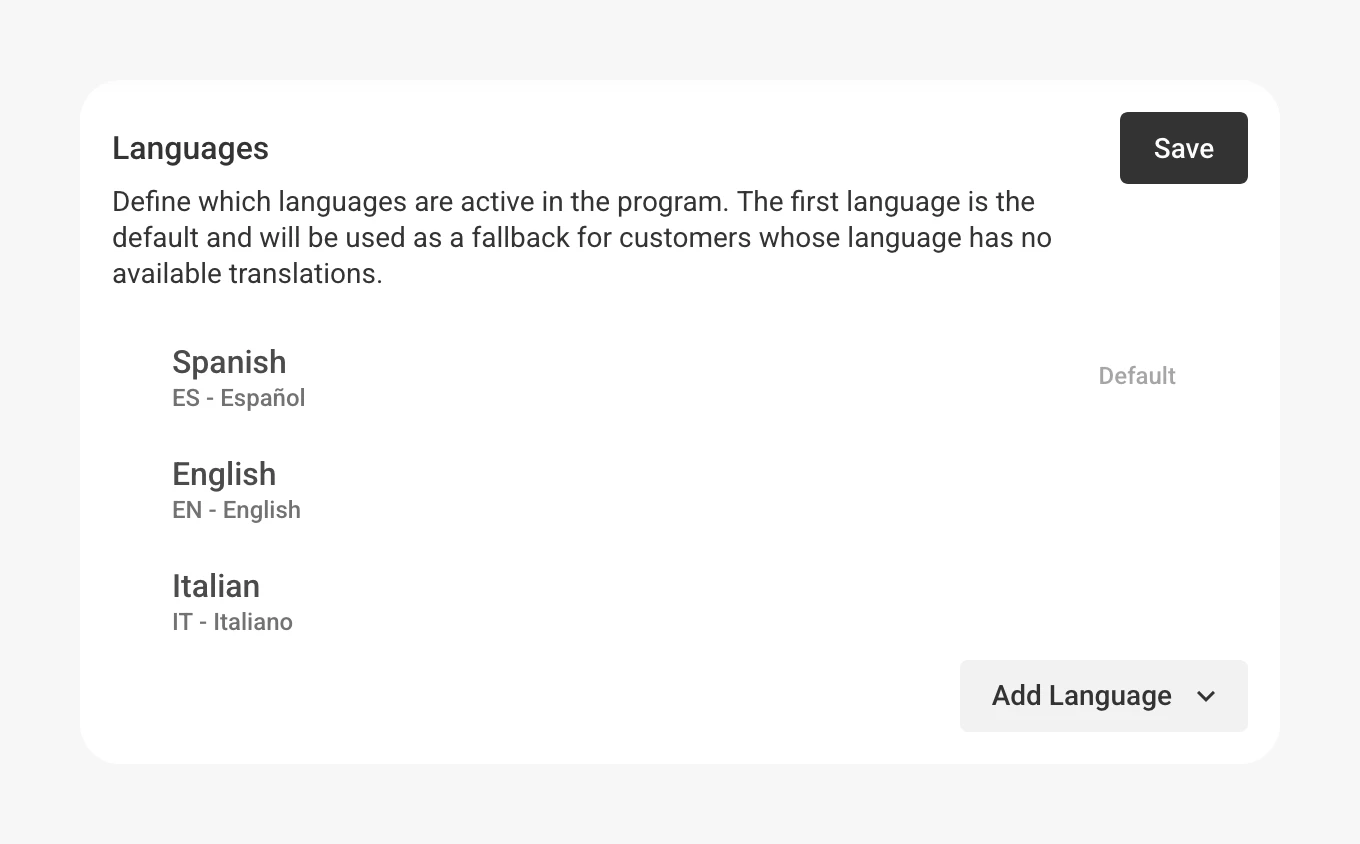
Go to Settings → Customer Flows → Languages in the JeriCommerce admin.
Add a language
Click Add Language and pick from English, Spanish, German, French, Italian, Bulgarian, Catalan, or Hungarian.
Pick your default language
Drag languages to reorder them. The first language in the list is your default. That's the language you write your original content in, and the one customers see when no translation is available for them.
Remove a language
Click the three-dot menu on any language to remove it. You can't remove your default language unless you set another one first.
Save
Click Save to apply your language settings.
What you can translate
Once you've added at least two languages, translation tools appear on every screen that holds customer-facing content:
Rewards
Reward title and description shown in the loyalty app.
Earning flows
Each earning flow has a title, short description, long description, and icon that customers see in the earning flow list and modal.
Wallet sections
Labels and content on the back of your loyalty card (Apple Wallet and Google Wallet).
Push notifications
Push notification, location-based, and coupon campaign header, body, and link sent to customers' loyalty cards.
Notification messages
Automatic wallet pass push notifications: balance updates, tier changes, and reward available alerts.
Translate content
The translation workflow is the same on every screen. Rewards, earning flows, wallet sections, push campaigns, and notification messages all use the same picker.
Open the language picker
On the screen you want to translate, look for the language button (globe icon) near the Save button. It shows your current language and a small colored dot if translations are incomplete.
Pick a language to translate
Choose a non-default language from the dropdown. Each language shows a status dot:
- No dot (green): all fields are translated
- Blue: some fields are translated
- Orange: no translations yet
Your default language is always marked as Default.
Edit translations
The form switches to translation mode for the language you picked. Type the translated text in each field. Your original text appears as a placeholder so you can see what to translate.
Save your translations
Click Save to store the translations. You can switch between languages at any time to review or edit them.
Auto-translate missing content
When you save a screen and some languages are still missing translations, JeriCommerce offers to fill them in for you.
Save with incomplete translations
Click Save while one or more languages still have untranslated fields.
Review the translation status
A dialog appears listing every language with its translation status. The one marked default is the source.
Choose auto-translate or skip
- Click Translate to let JeriCommerce fill in the missing translations from your default language.
- Click Save without translating to save your changes as they are. You can come back and translate later.
How JeriCommerce picks the right language for each customer
You don't need to do anything per-customer. JeriCommerce detects the right language automatically:
- When a customer opens your loyalty app for the first time, JeriCommerce reads their browser's language and stores it on their customer record.
- From then on, every screen, notification, and automatic email the customer sees uses their language, no matter which device they're on.
- If their language isn't one you've turned on, JeriCommerce falls back to your program default language.
- If for any reason no default is set, content falls back to English.
Where translations show up
| Surface | Translated by | Falls back to |
|---|---|---|
| Rewards in the loyalty app | Customer's language | Program default, then English |
| Earning flows in the loyalty app | Customer's language | Program default, then English |
| Wallet pass sections | Customer's device language | Program default |
| Push campaigns (scheduled, location-based, coupon) | Customer's language | Program default, then English |
| Wallet pass push notifications (balance / tier / reward available) | Customer's language | Program default, then English |
| Automatic emails (download pass, coupons, rewards, gift cards, verification) | Customer's language | Program default, then English |
When you replace a built-in email with a Klaviyo Flow, JeriCommerce's automatic language selection and fallback no longer apply. Add translated content or conditional language blocks in Klaviyo for those messages.