JeriCommerce creates real discounts in your Shopify store and generates a batch of unique codes from them. This guide walks through the generator from start to finish.
You will find it in the discount section of any reward, coupon, or anonymous campaign, called Associated discounts on a reward and Discount associated on a coupon. Click Shopify to open it.
Step 1: Choose the Discount Type
The generator opens on a short list of the four types, the same way Shopify opens its own discount creation.
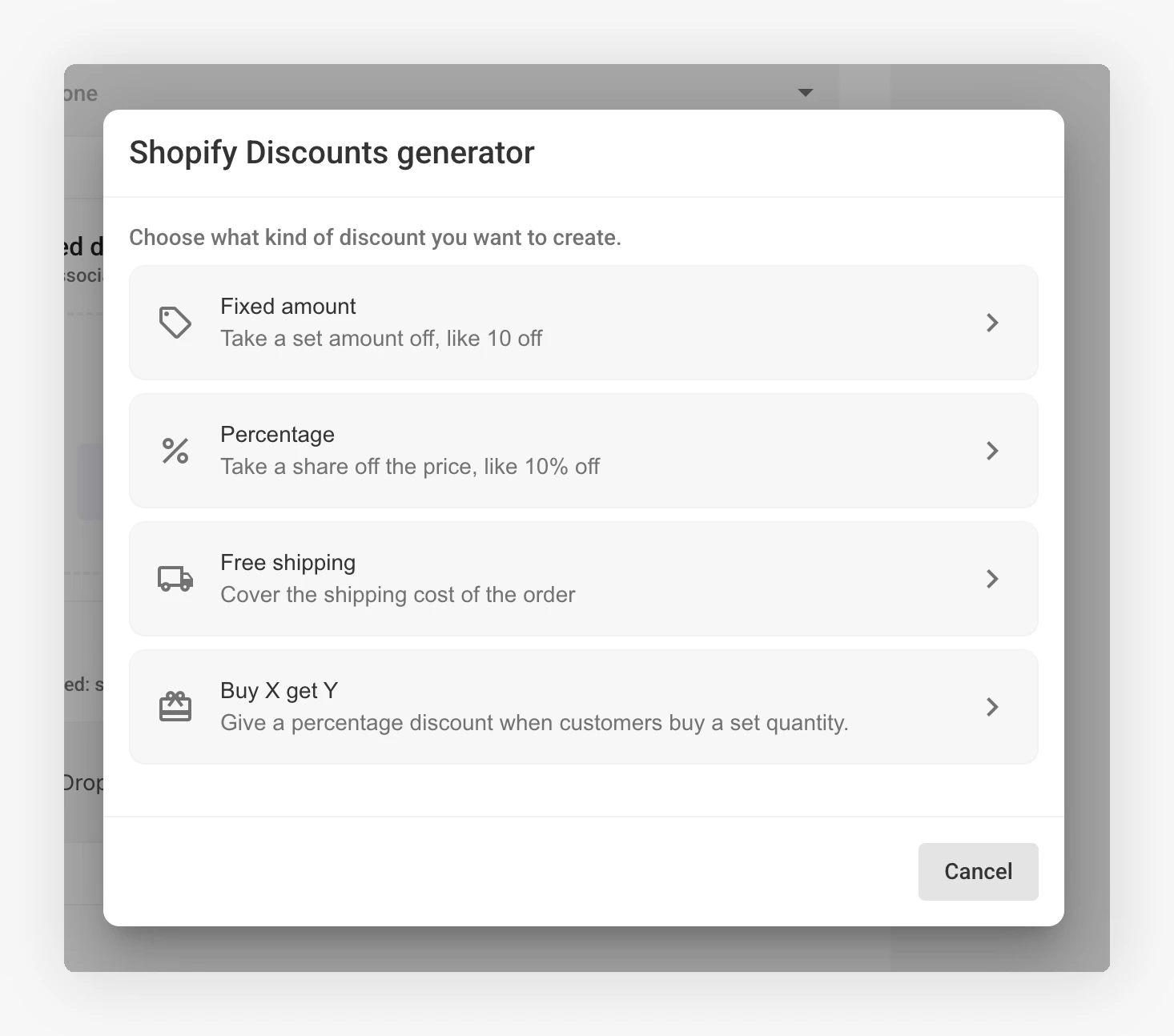
Pick one and the form opens with only the options that apply. If you are not sure which to choose, see Discount types.
Step 2: Fill In the Discount
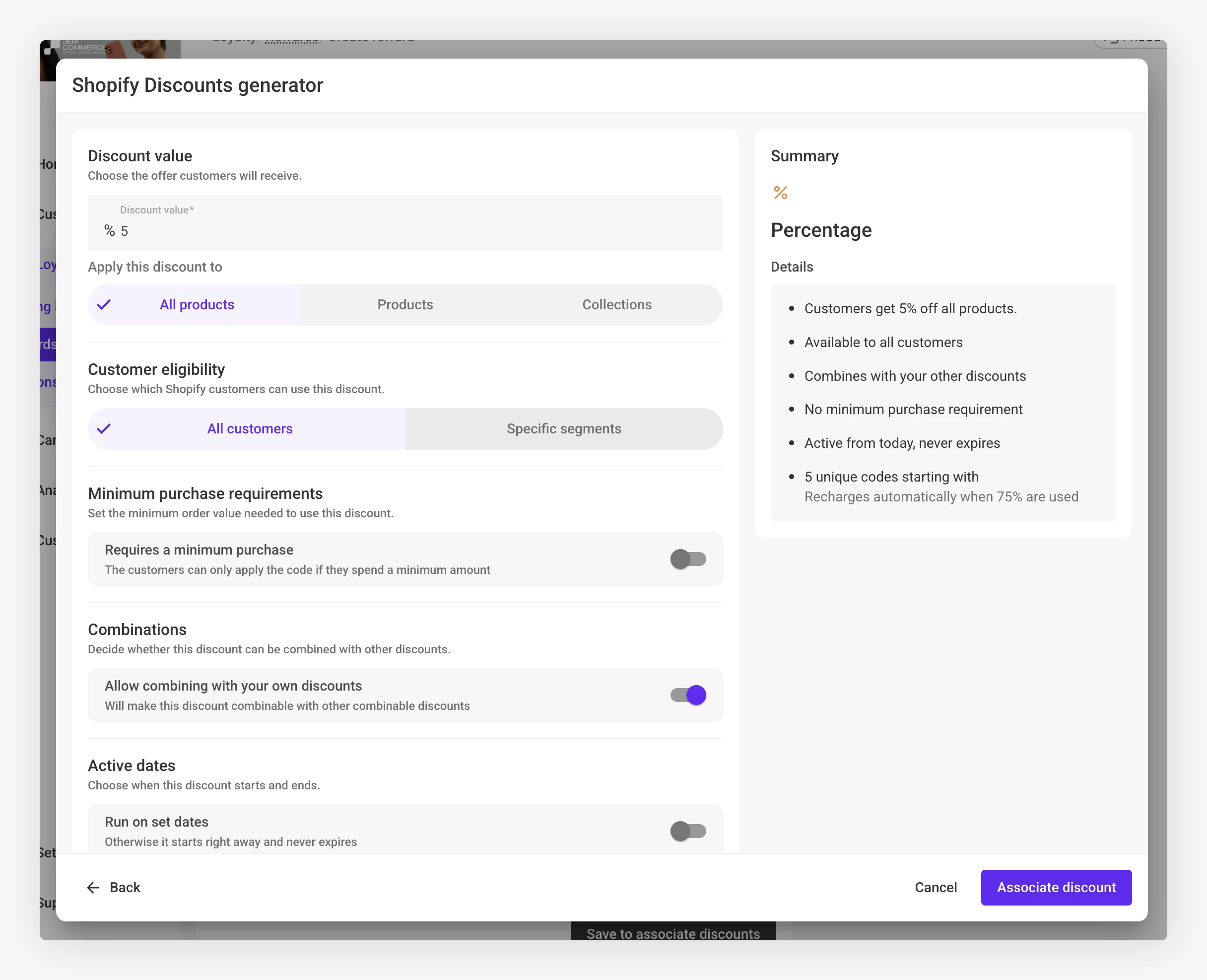
The form is split into sections. A Summary panel on the right updates as you go, so you can read your offer back in plain language before generating anything.
Discount value
Enter the amount or percentage customers get. Free shipping has no value to enter. Buy X get Y asks instead for the quantity customers buy and the quantity plus percentage they get.
Apply this discount to
Choose All products, or narrow the discount to selected Products or Collections. Full details in Target products and customers.
Customer eligibility
Leave it on All customers, or restrict the discount to specific Shopify customer segments.
Minimum purchase requirements
Turn on Requires a minimum purchase and set the amount customers need to spend before the code works. Leave it off and any order qualifies.
Combinations
Turn on Allow combining with your own discounts if you want these codes to stack with your other promotions. It is on by default.
Active dates
Turn on Run on set dates to pick a start and an end. Leave it off and the discount starts right away and never expires. If you set an end date, customers see that expiry on their wallet pass.
Codes
Set the format and how many codes to generate. This is covered in detail below.
Step 3: Set the Code Format
Prefix
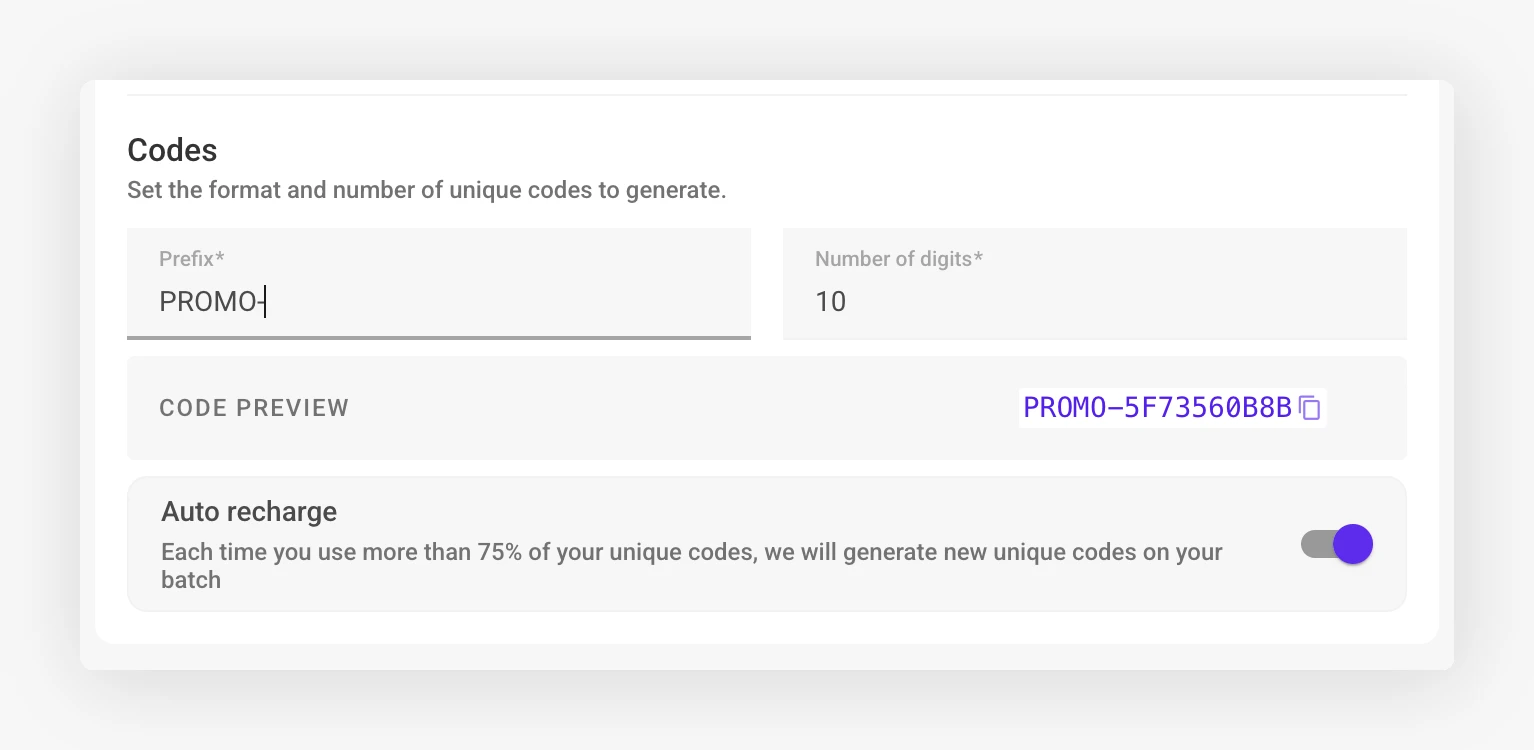
A short label at the start of every code, like LOYALTY- or PROMO-. It makes codes easy to recognise in your Shopify reports. A prefix is required.
Number of digits
How many random characters follow the prefix. Choose between 6 and 15. Ten is a good default: long enough that nobody guesses a code, short enough that customers can type it.
The Code preview underneath shows exactly what a generated code will look like.
How many unique codes
Generate anywhere from 1 to 100,000 codes in one batch. Small batches suit testing or limited offers. Larger batches are safer for campaigns that hand out codes quickly.
Auto recharge
Leave Auto recharge on and JeriCommerce generates a fresh batch of the same size once 75% of the codes are claimed, so you never run dry mid-campaign. See Unique codes and auto recharge.
Step 4: Generate
Click Generate codes. JeriCommerce creates the discount in Shopify straight away, then builds the codes in the background.
Large batches take a little while. You can leave the page, the work continues on our servers, and codes become claimable as they arrive.
Managing a Discount After Creating It
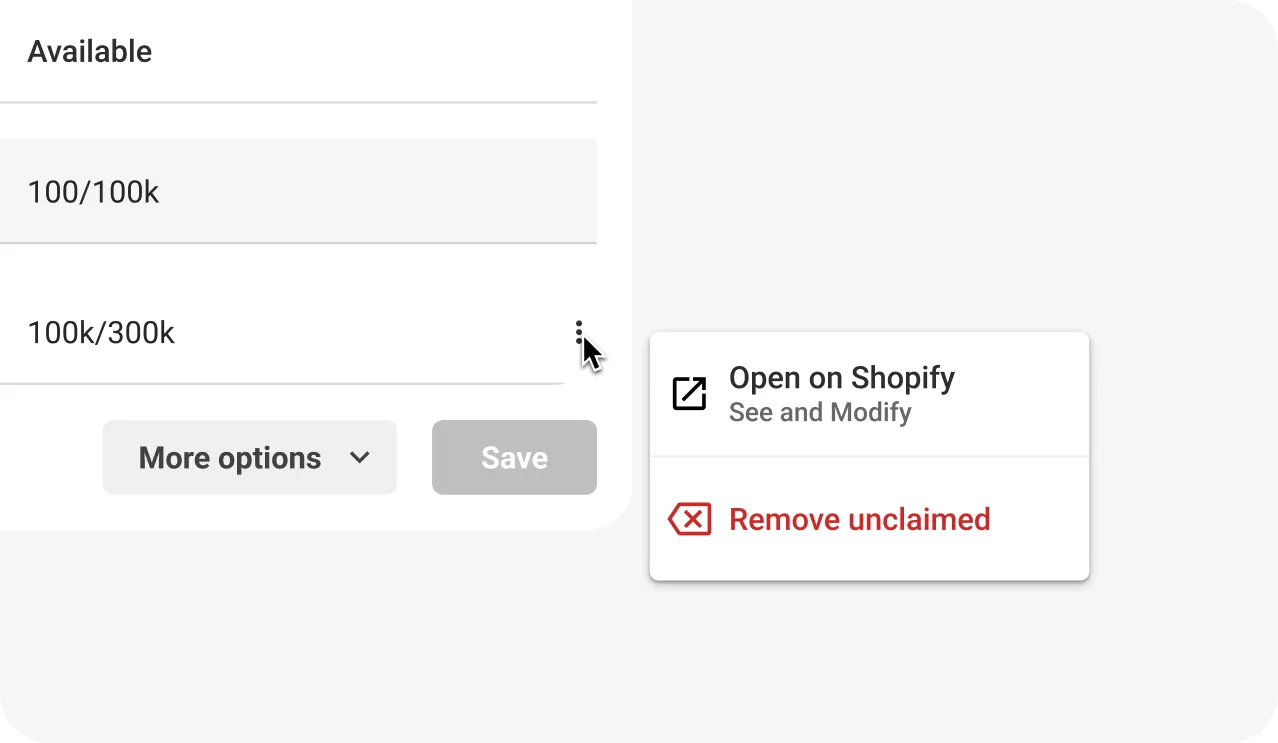
Every batch you create is listed in the discount section, along with its value and any minimum spend. The Available column shows how many codes are left out of the total, or an Auto Recharge badge if the batch tops itself up, since a recharging batch never really runs down.
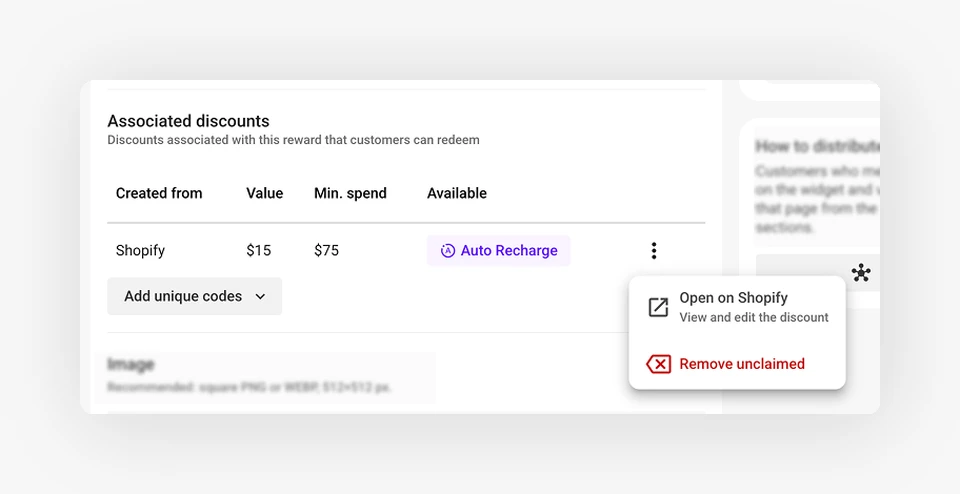
Click the three dots on a batch for two actions:
- Open on Shopify takes you to the discount in your Shopify admin, where you can see every code and adjust the rules. Changes you make there keep working with JeriCommerce.
- Remove unclaimed deletes the codes nobody has taken yet. If the batch had auto recharge on, this switches it off too.