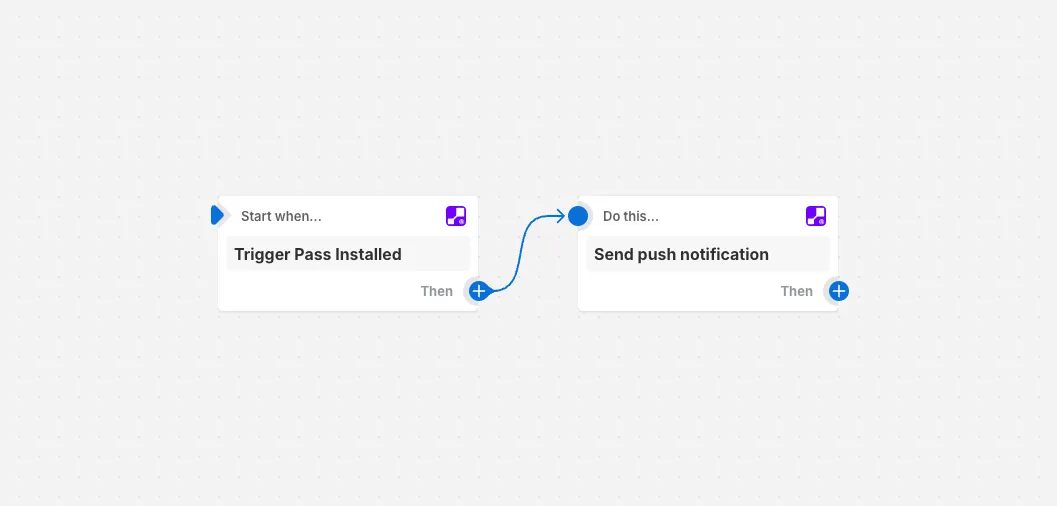
When a customer installs your wallet pass on their device, you gain a new direct communication channel to reach them. Push notifications land directly on the lock screen — more immediate than email and without the cost of SMS.
Shopify Flows lets you add wallet push notifications into any automation you build, so you can send targeted messages at the right moment in the customer journey.
How It Works
On Shopify Flows, you'll find pre-built JeriCommerce actions and triggers ready to use. The Send Push Notification action requires three parameters:
| Parameter | Description |
|---|---|
| Customer email | The email address of the customer to notify |
| Notification header | The title line shown in the push notification |
| Notification body | The main message content |
Open Shopify Flows
Go to your Shopify admin and open the Flows section.
Create or edit a flow
Add the JeriCommerce Send Push Notification action to any flow — after a purchase, on a tag change, or any trigger you choose.
Fill in the notification fields
Set the customer email (use the flow's customer object), the header, and the body text.
Turn on the flow
Activate the flow and notifications will be sent automatically whenever the trigger fires.