This guide explains how to configure and personalize the back side of a digital loyalty card by adding custom sections. You can use these sections to link users to content, display helpful information, or show dynamic user data.
Step-by-Step Instructions
1. Switch to the Back View
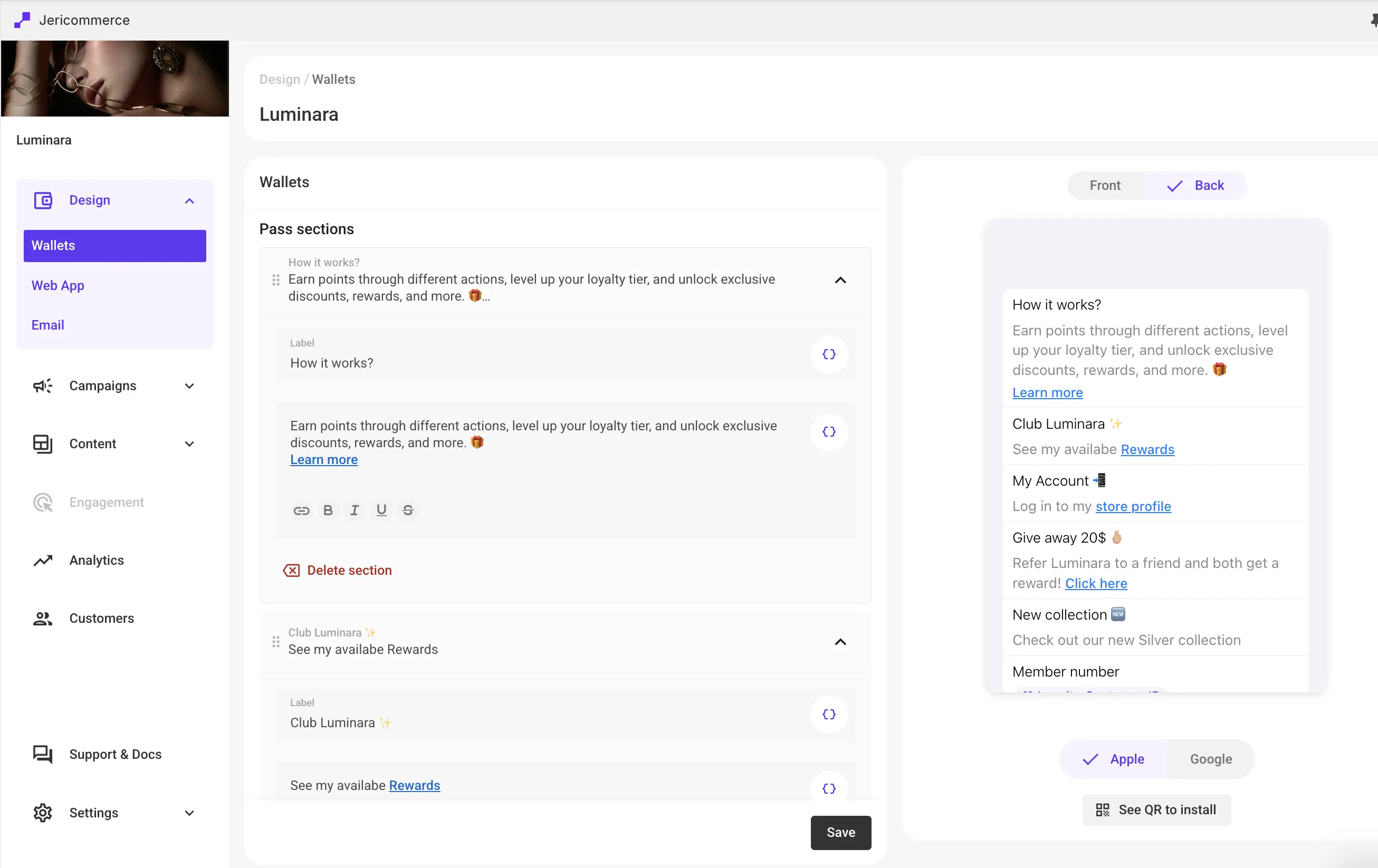
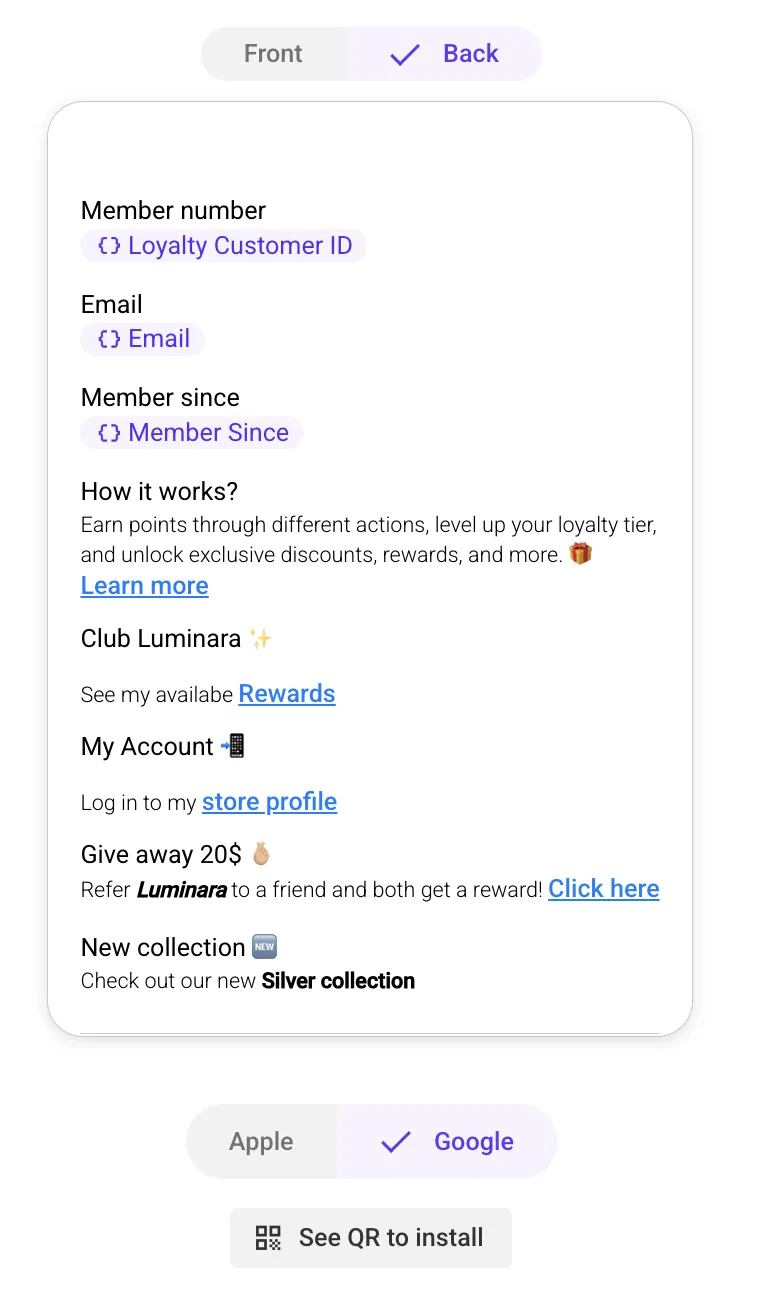
In the preview panel, click the "Back" tab to display the back side of the pass. This is where custom sections appear.
2. Add a New Section
Scroll to the "Pass sections" area in the editor and click "Add section". A new section will appear for editing.
3. Configure the Section
Each section includes two fields:
- LabelThis is the section title (e.g., Loyalty Program, Rewards, Your Profile).
- Content of the SectionAdd the information or links you want to display. You can:Add plain text
- Insert clickable links
- Use formatting (bold, italic, underline, strikethrough)
- Bind dynamic fields (e.g., name, membership number) using the purple sync icon
4. Reorder Sections
Use the six-dot handle on the left side of any section to drag and reorder them. The order in the editor matches how they will appear in the wallet.
5. Delete a Section
To remove a section, click the "Delete section" button at the bottom of that section.
6. Preview Your Changes
All changes are updated live in the preview on the right side. Use this to review how your pass will appear before publishing. Switch between Apple Wallet and Android Wallet to see how it looks for both devices.
Examples of Sections You Can Add
Here are some common use cases and ideas for content you can include on the back of the wallet:
- Introduction to the Loyalty ProgramA short explanation of how the program works and how users can earn points or rewards.
- Link to Rewards Page"View available rewards" linking to a page where users can redeem points or perks.
- Link to User ProfileLet users view or update their profile or account preferences.
- Referral ProgramInclude a link to invite friends and earn rewards.
- Nearest Store or Store LocatorLink users to a map or store finder page.
- New Collections or DropsAnnounce new product collections with a link to shop.
- Social Media LinksEncourage users to follow your brand by linking to Instagram, TikTok, or other channels.
- Customer SupportAdd a contact link or help center article for assistance.
Tips for Best Results
- Keep section titles short and clear.
- Use links to drive traffic to high-value pages.
- Personalize sections with dynamic fields whenever possible.
- Keep text brief for a better mobile experience and leave spaces.
- Add emojis for a fresher look! ✨
Try it in your Shopify Store > Design