You'll learn how to configure your tech stack, design and distribute wallet passes, automate engagement, and prepare campaigns to increase retention and loyalty.
1. Overview of Your Stack
Before starting, define the tools you'll use. This guide assumes:
- Shopify or Shopify Plus
- JeriCommerce Wallet (installed from the Shopify App Store)
- JeriCommerce Loyalty (built-in loyalty platform)
- Automation platform: Klaviyo or Shopify Flow (optional but recommended)
If you're using Shopify Plus, you can enable Multipass loginfor seamless wallet-to-store navigation.
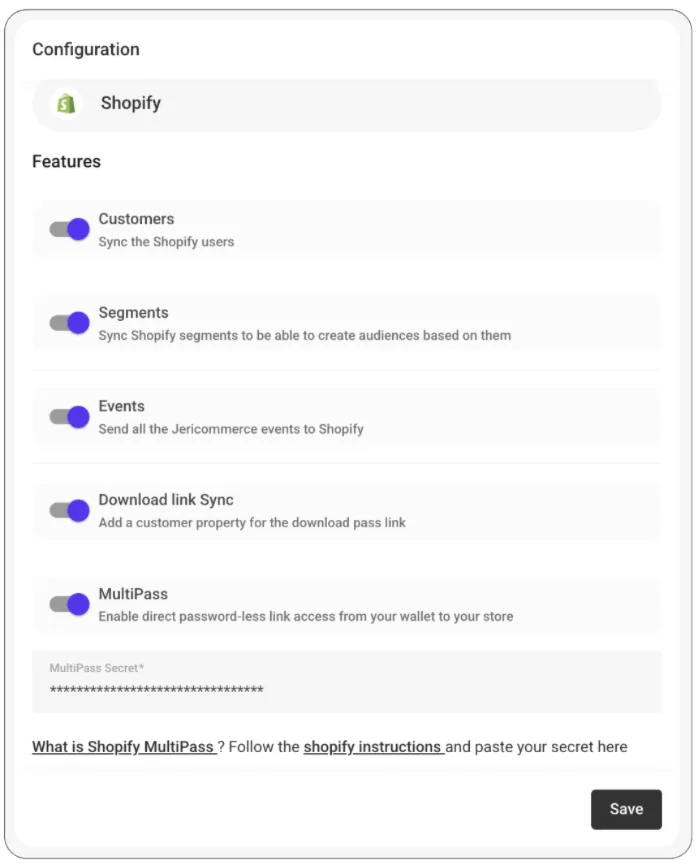 JeriCommerce > Settings > Integrations > Shopify
2. Loyalty Program Setup (JeriCommerce Loyalty)
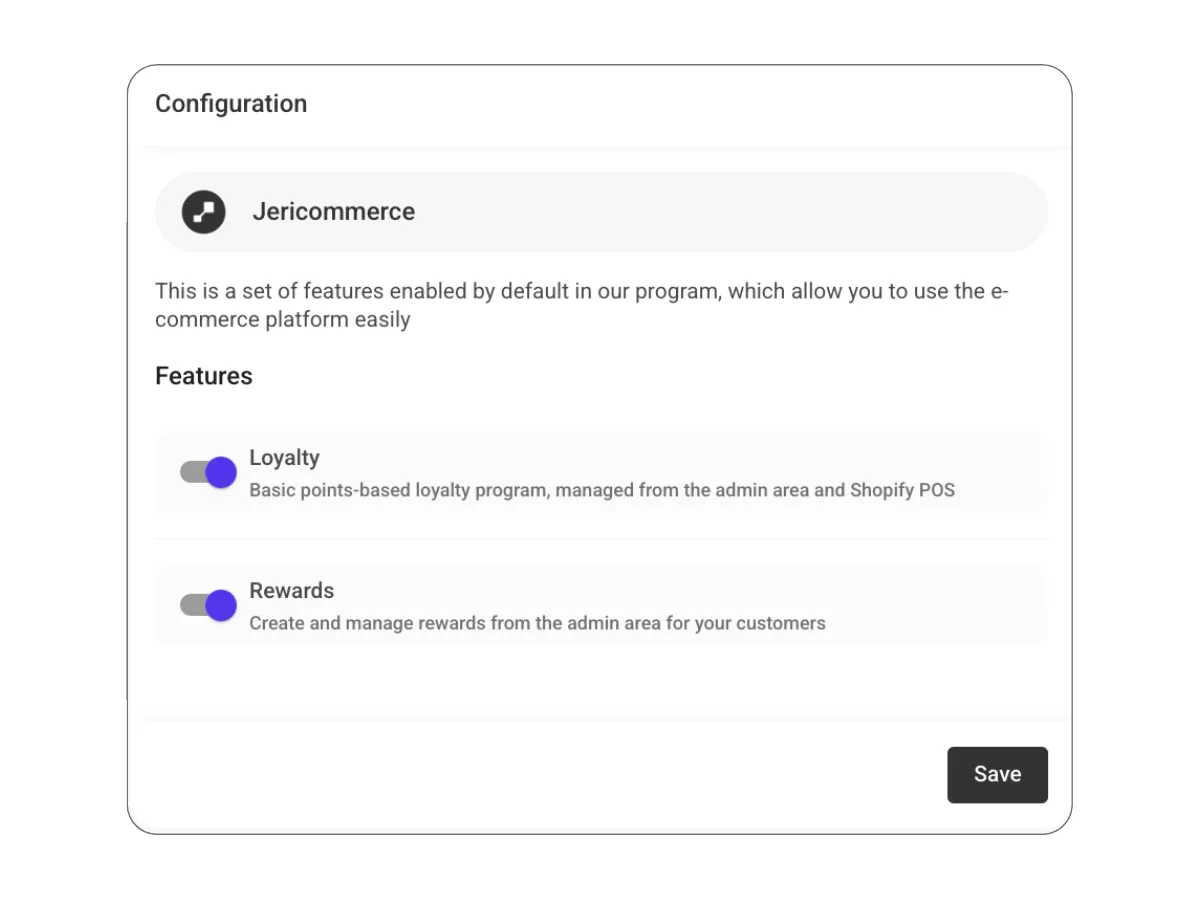
JeriCommerce Loyalty is the built-in loyalty engine. It’s designed for brands that want a simple, integrated way to manage points, rewards, and loyalty flows directly within the JeriCommerce platform—without relying on third-party providers.
Set Up Your Store & Labels
- Choose to create new loyalty program during the onboarding flow.
- Configure your store settings and basic loyalty program labels from the onboarding flow or the JeriCommerce admin.
- Labels include program and points name.
Create Earning Flows
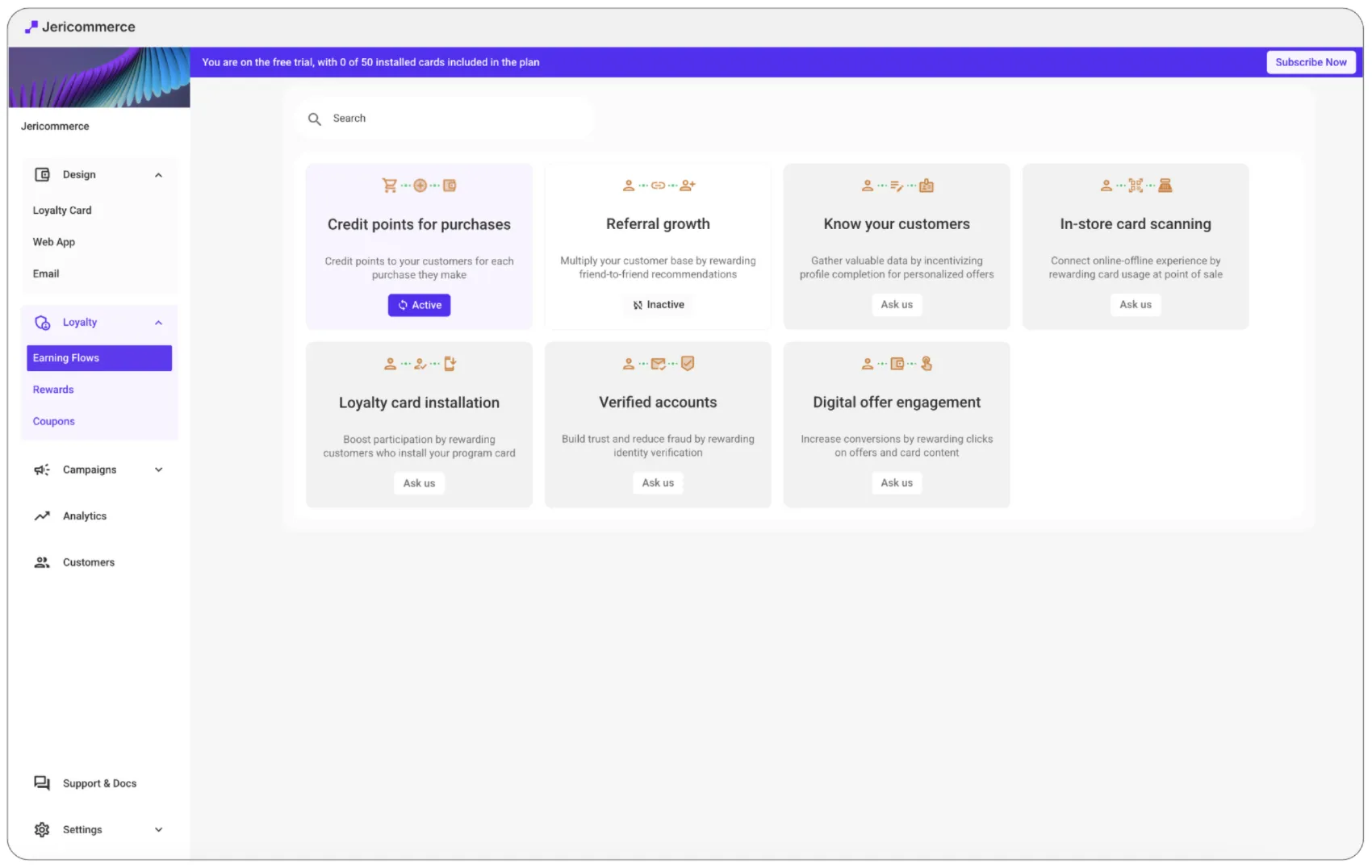
- You can create first earning flows from the onboarding process.
- Access the "Earning Flows" section in JeriCommerce admin.
- Set up point-earning rules for key actions:Purchases (based on amount spent)
- Referrals (based on referred customer joining loyalty program)
Optional Add-on: VIP Tiers
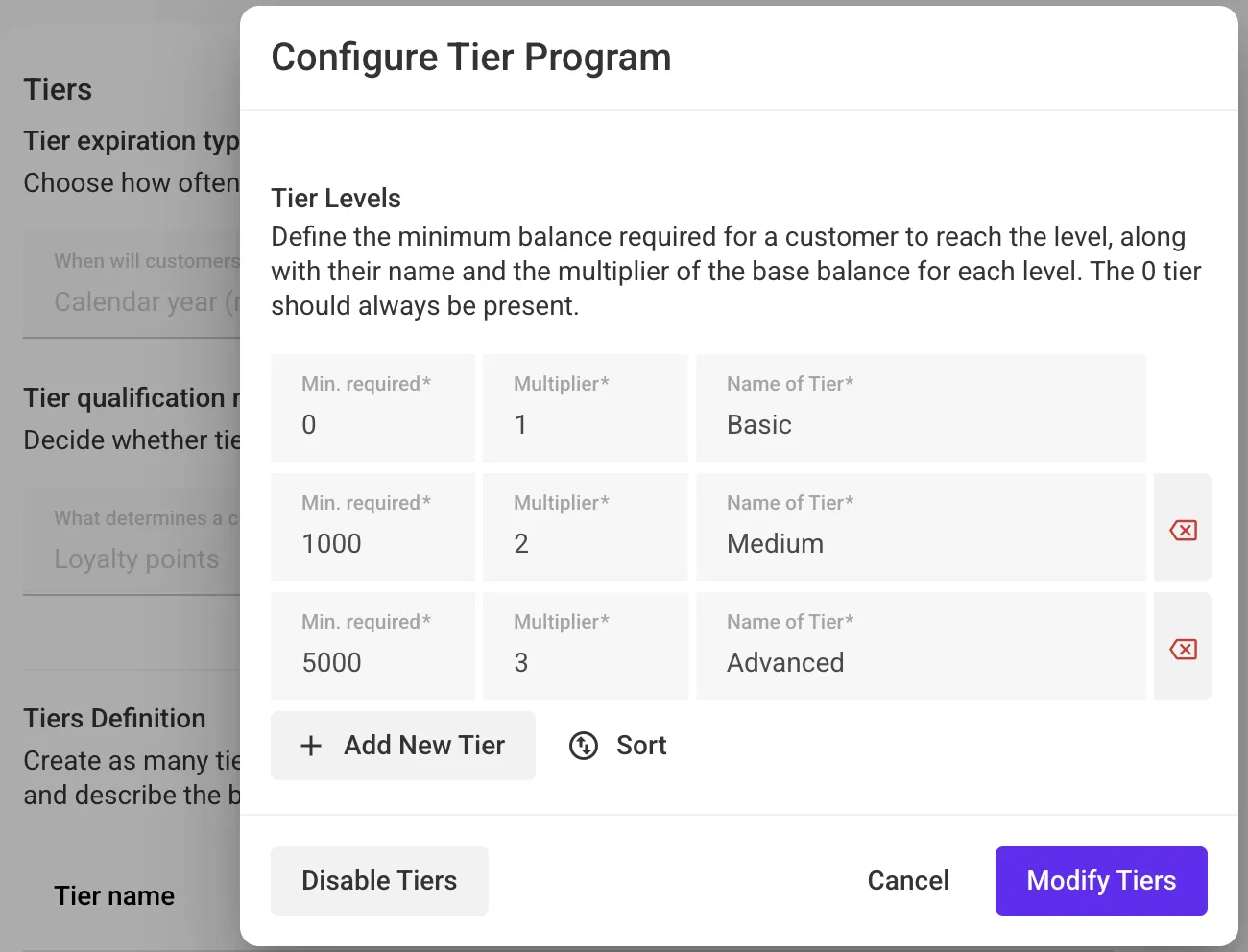
You can expand your program by adding status levels to reward your community.
- Define your tiers (e.g., Bronze, Silver, Gold) based on total spend or points earned.
- Set thresholds and recalculation cycles to automate customer progression.
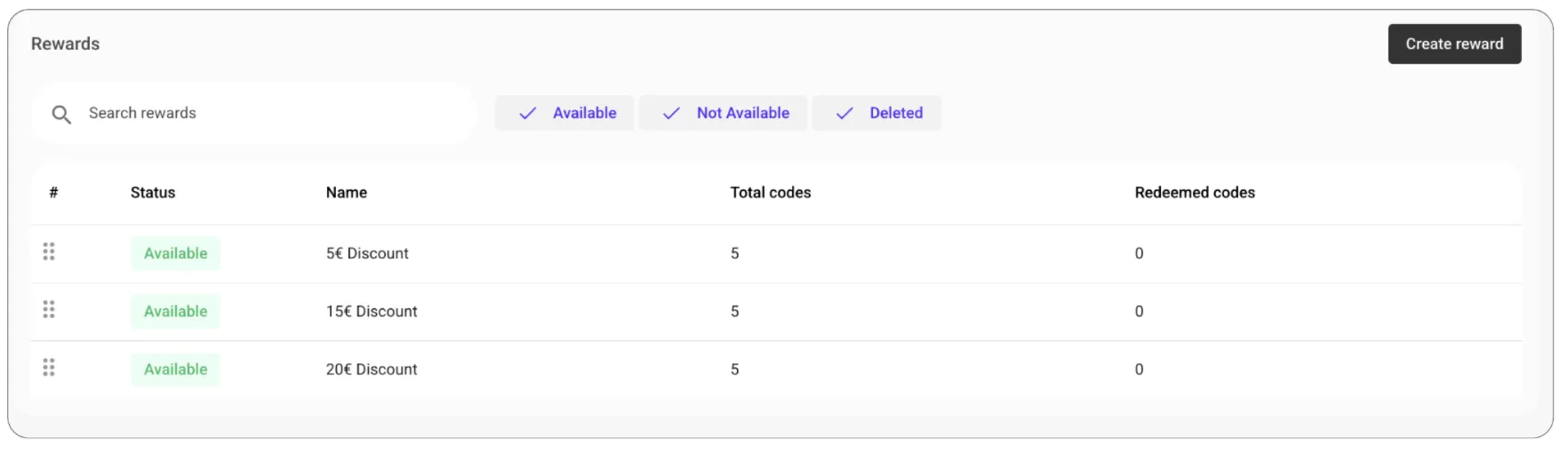
Configure Rewards
- You can create first rewards from the onboarding process.
- Add custom rewards customers can redeem with points.
- Rewards will be accessible from their wallet pass.
How do JeriCommerce Rewards work?
How to Set Your Loyalty Points Ratio (%) and Rewards by Business Type
Notifications on balance updates, rewards available are automatically sent and editable through customer flows. Learn how this works:
Automatic notifications from Loyalty Integrations
Note: JeriCommerce Loyalty does not support tiered programs. If you integrate a loyalty system that supports tiers (e.g., LoyaltyLion), they can appear on the wallet pass.
Optional Add-on: Storefront Embeds
Bring the loyalty experience directly to your online store for better conversion.
- App Embed Widget: Enable the JeriCommerce widget in your Shopify Theme Editor to allow customers to access rewards and tiers on-site.
- Product/Cart Blocks: Add native Shopify App Blocks to display real-time earning potential (e.g., "Earn 100 points") on product and cart pages.
How to use the JeriCommerce Storefront Widget
Setting up Points Accumulation Extensions (Product & Cart)
3. Loyalty Card Design and Setup
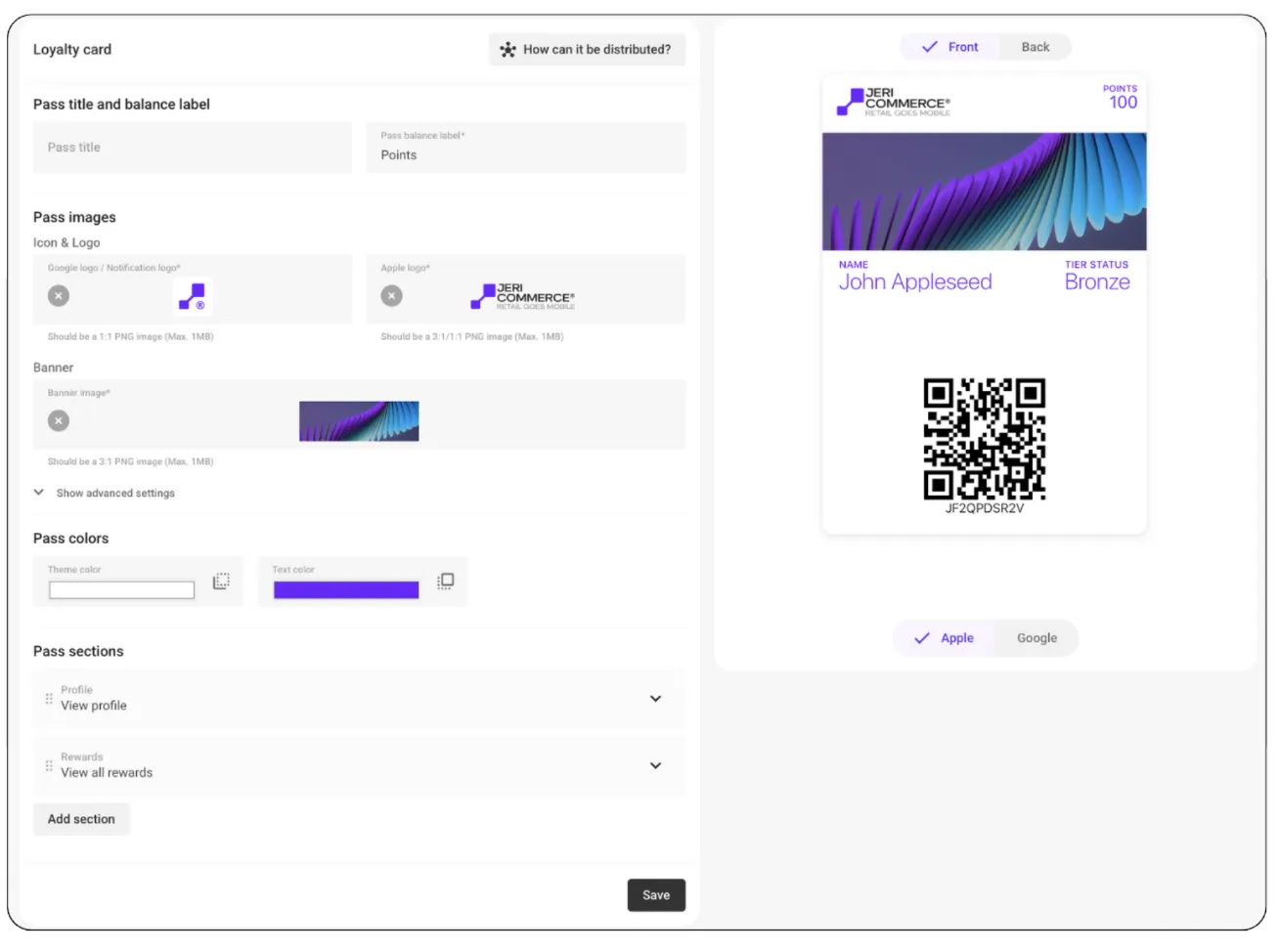
Customize Your Loyalty Card
- Use the Loyalty Card Designer in the JeriCommerce admin.
- Customize your brand colors, logos, and messaging.
Add Key Links to the Pass
Set up sections and links embedded in the Loyalty Card or campaigns for quick access to:
- Shopify login (Multipass login if on Shopify Plus)
- Customer profile/subscription
- Rewards profile
- Product or landing pages
Ensure sync is complete and Multipass is enabled (if applicable).
Android Wallet Back sections design
4. Wallet Download Links
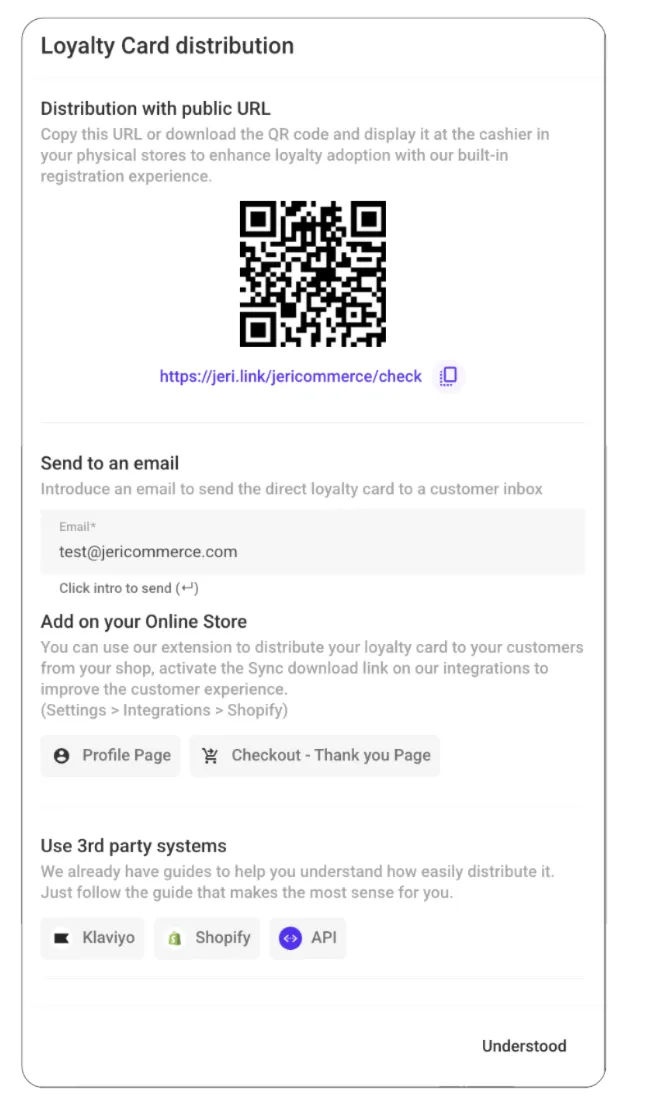
You can distribute wallet passes using dynamic or static links.
Learn How to distribute loyalty cards to your customers and how to create a unique customer link that enables sending the loyalty card to their email with a single click
Distribution Options
- Welcome emails or SMS
- Account/profile pages
- Post-purchase/Thank you screen
- Landing pages or pop-ups
5. Marketing Automation Integration
With Klaviyo
- Install Klaviyo integration
- Sync segments and events with Klaviyo.
- Send push notifications from Wallet via Webhooks.
With Shopify Flow
Find available flow templates or create your own flows using Wallet triggers and actions in your Shopify flow.
6. Campaign Ideas to Launch
Location-Based Campaigns
- Trigger push when customers are near a store.
- Send geo-targeted discounts.
How location-Based Notifications work
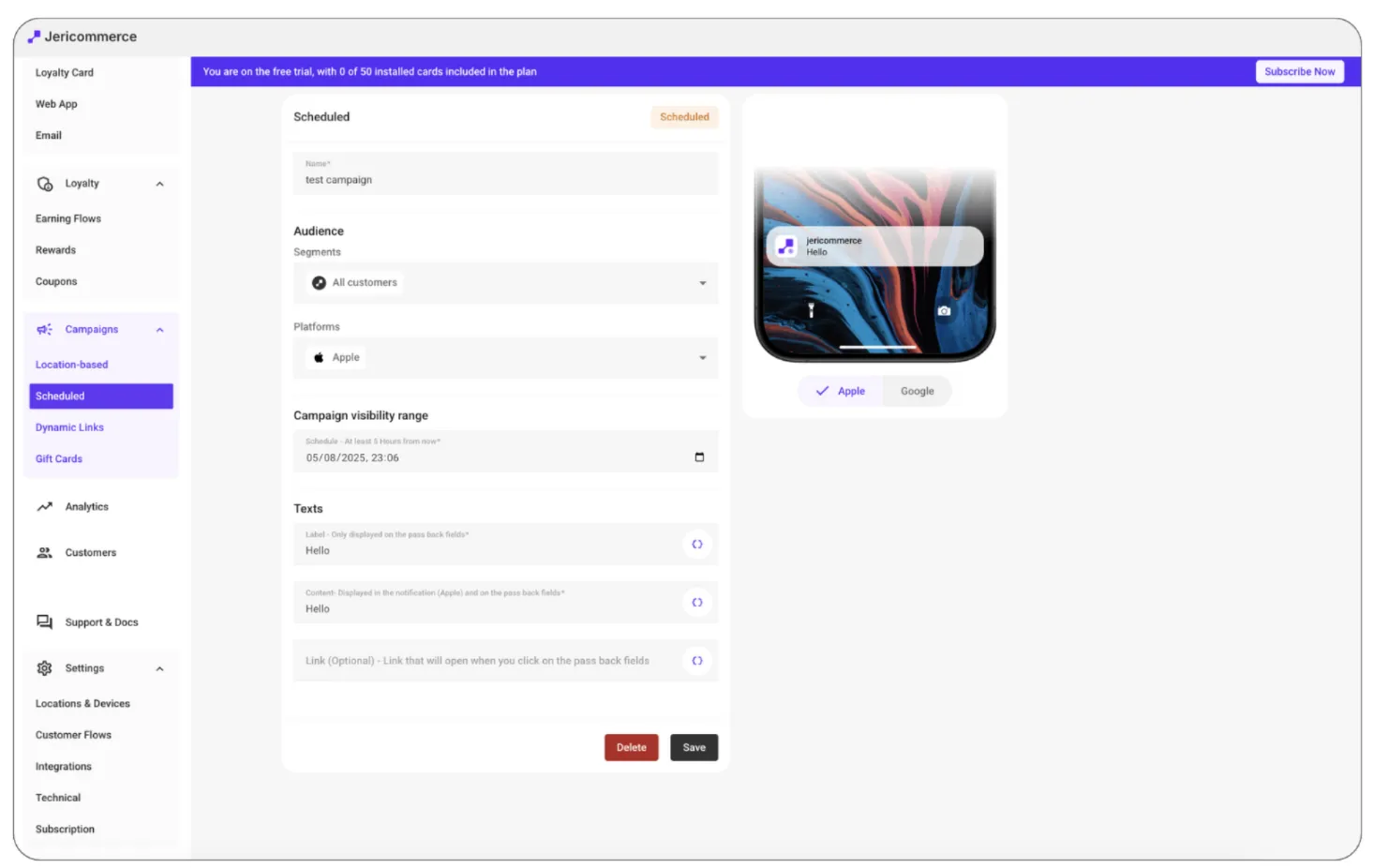
Scheduled Campaigns
- Announce sales or new arrivals.
- Send time-limited offers.
7. Promote Wallet Adoption
Increase visibility and downloads:
- Add Wallet button to account/profile page.
- Offer bonus points for first-time downloads.
- Highlight Wallet features in onboarding content.
- Add to existing mails and workflow journeys.
- Include QR code in-store counters.
8. Customer Preferences & Compliance
Configure Customer Flows > During the registration process within the web app, you have the flexibility to select which fields to save.
Configure policy and agreements for notification consentment if needed.
Lear more about Customer flows.
9. Omnichannel
In case of having a retail store using Shopify POS, follow this guides to integrate JeriCommerce in your phisical stores.
How to Add JeriCommerce Tiles to Your Shopify POS
Scan the customer's loyalty card on Shopify POS
You are all set up and ready to launch your loyalty card program with JeriCommerce! 🎉
For custom setup help or advanced support, contact the JeriCommerce support team directly.