title: "Pre-launch Checklist - Loyaty Lion Integration" tags: ["assets", "vip-tiers", "shopify-pos", "rewards", "notifications", "locations", "set-up", "devices", "audiences", "events", "loyalty-card", "earn", "coupons", "discount-codes"] source: "/getting-started/pre-launch-checklist---loyaty-lion"
Getting Started: Integrate JeriCommerce Wallet with LoyaltyLion
This guide helps you integrate the JeriCommerce Wallet Pass into your Shopify store if you're already using LoyaltyLion as your loyalty engine. You’ll learn how to link both platforms, customize the Wallet, distribute it to users, and build automation flows to enhance retention and engagement.
1. Overview of Your Stack
Before you begin, confirm your tools:
- Shopify or Shopify Plus
- LoyaltyLion (installed and configured)
- JeriCommerce Wallet (installed from the Shopify App Store)
- Automation platform: Klaviyo or Shopify Flow (optional)
Shopify Plus stores can enable Multipass login for frictionless navigation between wallet and store.
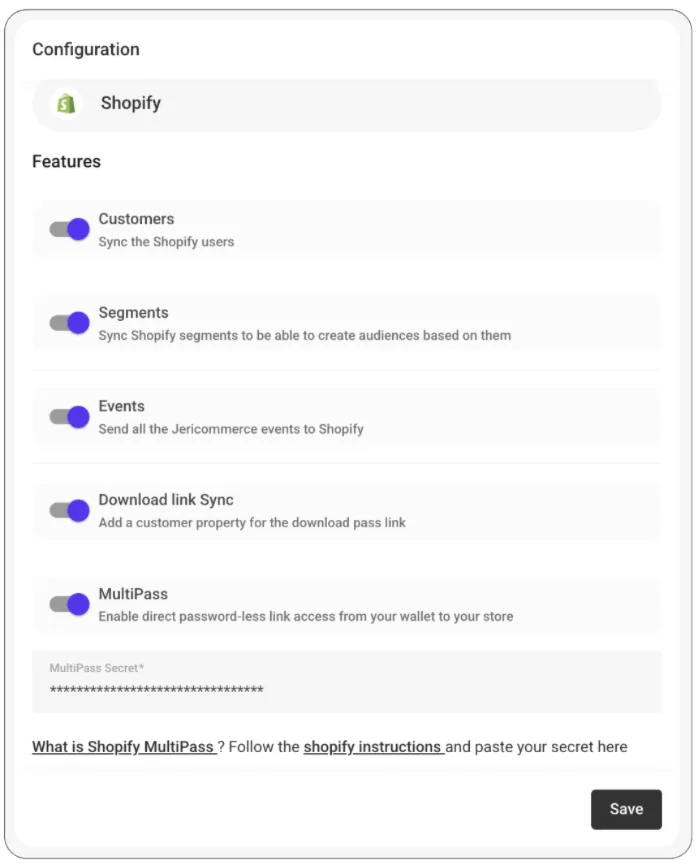 JeriCommerce > Settings > Integrations > Shopify
2. Syncing LoyaltyLion with JeriCommerce Wallet
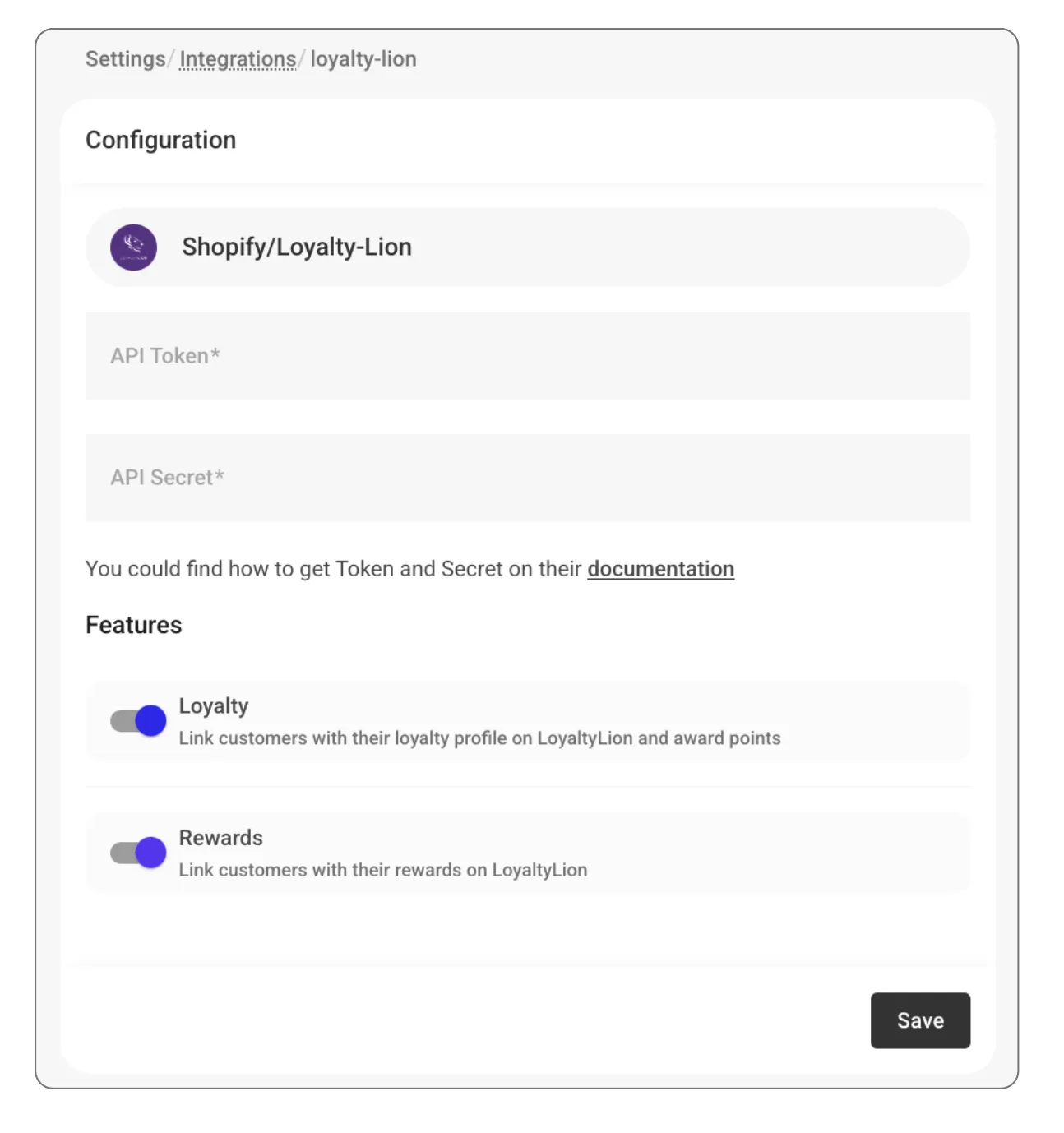
JeriCommerce Wallet integrates directly with LoyaltyLion’s customer data and loyalty information.
Learn how to Configure Loyalty Lion Integration.
Sync Required Data
-
Make sure LoyaltyLion is active and your Shopify customers are properly synced.
-
The Wallet will display LoyaltyLion data including:Current point balance
- Tier level (if configured)
- Tier name and badge (customizable in LoyaltyLion)
- Available rewards
Notifications on balance updates, rewards available are automatically sent and editable through customer flows. Learn how this works:
Automatic notifications from Loyalty Integrations
Customizing Display in Wallet
- JeriCommerce Wallet pulls real-time loyalty info from LoyaltyLion.
- You can customize what is shown in the Wallet pass (e.g., hide/show tier, only show point balance, etc.).
Note: Tier programs and VIP levels will be shown only if configured in LoyaltyLion.
3. Wallet Pass Design and Setup
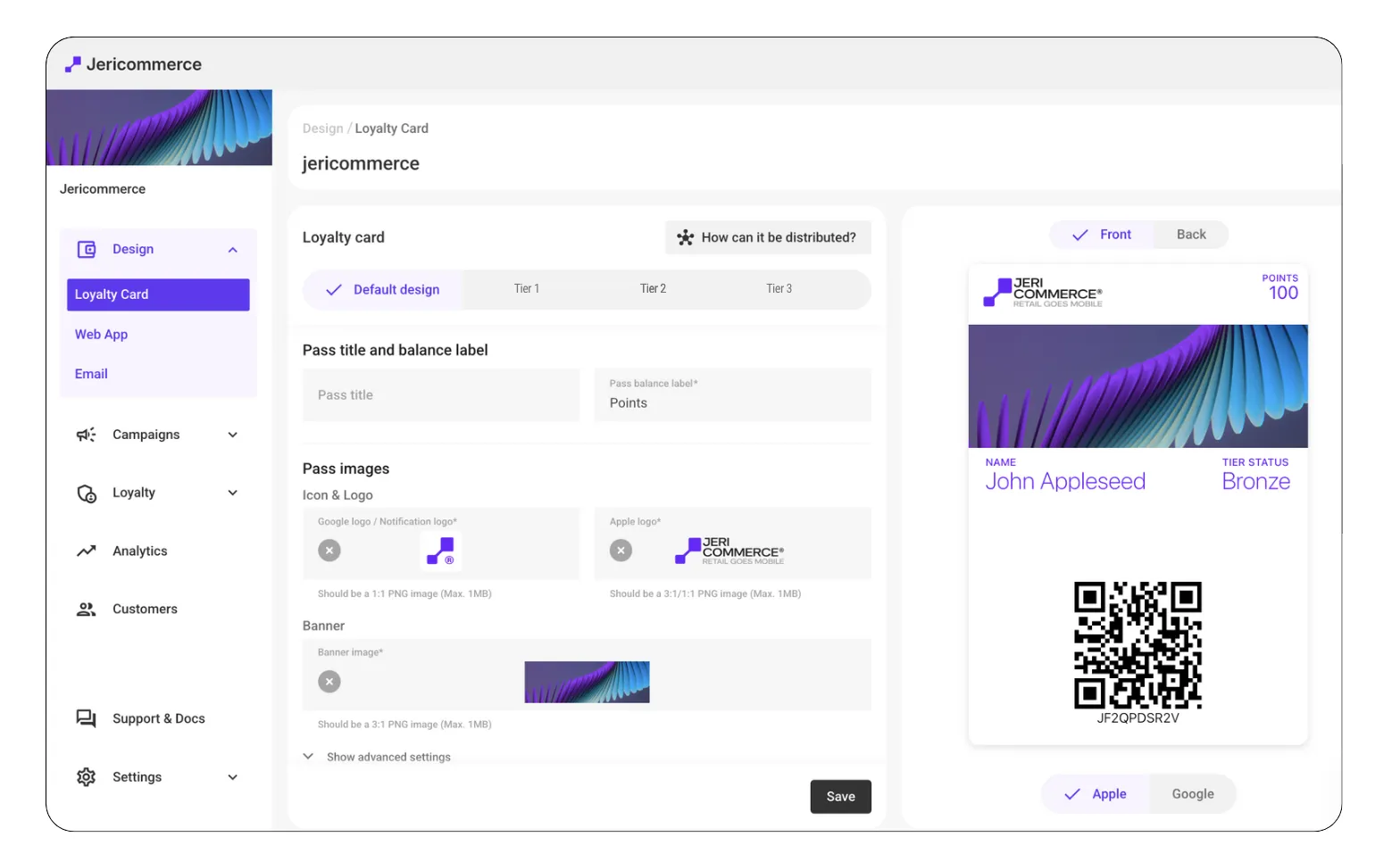
Use the Loyalty Card Designer
- Access the Loyalty Card Designer in the JeriCommerce admin.
- Customize brand visuals (logo, colors, font)
- Customize different visuals for diferent tiers
Add Key Links to the Pass
Set up sections and links embedded in the Loyalty Card or campaigns for quick access to:
- Shopify login (Multipass login if on Shopify Plus)
- Customer profile/subscription
- Rewards profile: Add Link to Rewards on the Loyalty Card
- Product or landing pages
Ensure sync is complete and Multipass is enabled (if applicable).
Android Wallet Back sections design

4. Wallet Download Links
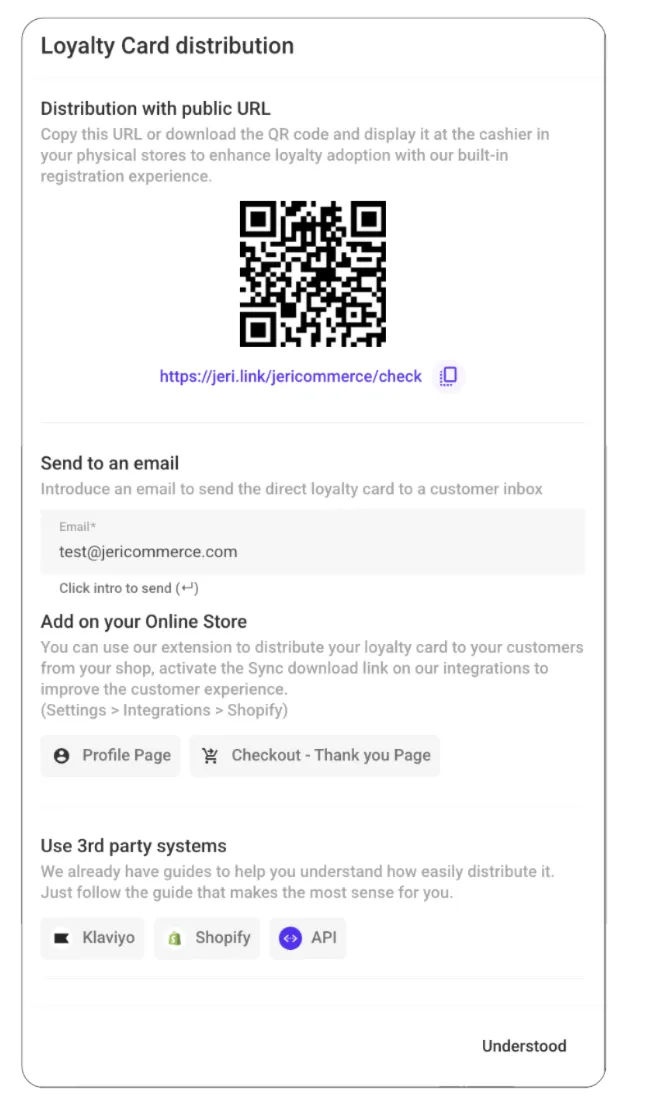
You can distribute wallet passes using dynamic or static links.
Learn How to distribute loyalty cards to your customers and how to create a unique customer link that enables sending the loyalty card to their email with a single click
Distribution Options
- Welcome emails or SMS
- Account/profile pages
- Post-purchase/Thank you screen
- Landing pages or pop-ups
5. Marketing Automation Integration
With Klaviyo
- Install Klaviyo integration
- Sync segments and events with Klaviyo.
- Send push notifications from Wallet via Webhooks.
With Shopify Flow
Find available flow templates or create your own flows using Wallet triggers and actions in your Shopify flow.
6. Campaign Ideas to Launch
Location-Based Campaigns
- Trigger push when customers are near a store.
- Send geo-targeted discounts.
How location-Based Notifications work
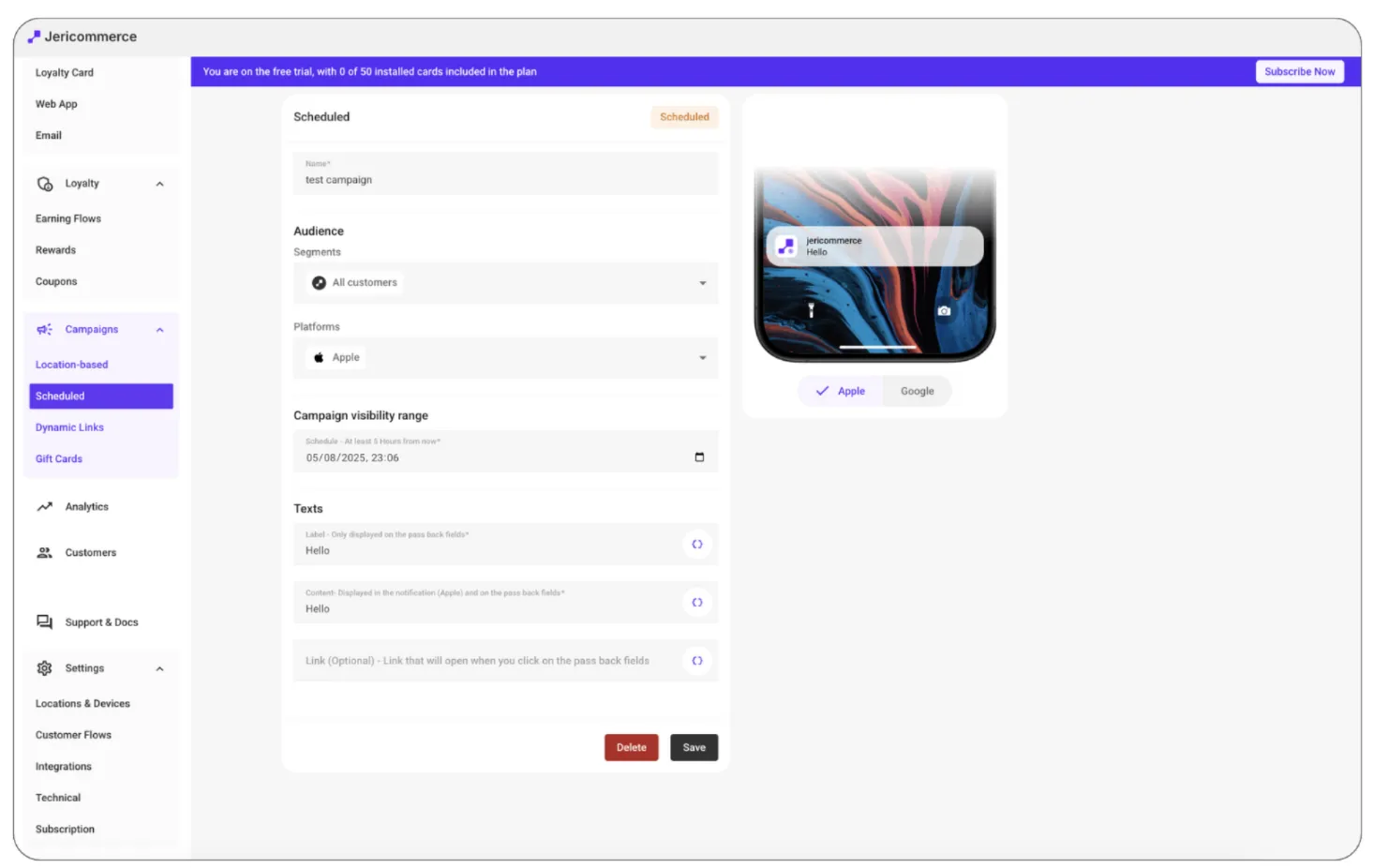
Scheduled Campaigns
- Announce sales or new arrivals.
- Send time-limited offers.
7. Promote Wallet Adoption
Increase visibility and downloads:
- Add Wallet button to account/profile page.
- Offer bonus points for first-time downloads.
- Highlight Wallet features in onboarding content.
- Add to existing mails and workflow journeys.
- Include QR code in-store counters.
8. Customer Preferences & Compliance
Configure Customer Flows > During the registration process within the web app, you have the flexibility to select which fields to save.
Configure policy and agreements for notification consentment if needed.
Lear more about Customer flows.
9. Omnichannel
In case of having a retail store using Shopify POS, follow this guides to integrate JeriCommerce in your phisical stores.
How to Add JeriCommerce Tiles to Your Shopify POS
Scan the customer's loyalty card on Shopify POS
You are all set up and ready to launch your loyalty card program with JeriCommerce! 🎉
For custom setup help or advanced support, contact the JeriCommerce support team directly.
Related GuidesPre-launch Checklist - JeriCommerce LoyaltyPre-launch Checklist - Loyaty Lion Integration OtherGuidesNo items found.
Topics
VIP TiersShopify POSDiscount codesEarning flowsLoyalty cardSet upDevicesRewardsAudiencesLocationsNotificationsAssetsEventsCoupons
Integrations
ShopifyAPIJeriCommerceLoyalty LionKlaviyo
Features
#### Loyalty Cards#### Rewards#### Earning Flows#### VIP Tiers#### Referral#### Push notifications#### Location-based