Only users on the Enterprise plan can access NFC technology in their stores. This feature allows them to identify customers' in-store purchases with just a tap.
Let's review how to add a new NFC reader and how the connection with a specific store's POS works.
Add NFC Reader to a location
To add an NFC Reader, go to the admin app and navigate to "Settings > Location & Devices." Then, select the location where you will connect the NFC Reader.
This location must always be synchronized with Shopify, not one created in JeriCommerce.
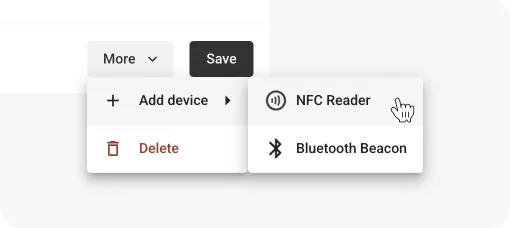 Add NFC Reader on a location
Connect POS to JeriCommerce
Now it's time to connect a specific POS to JeriCommerce. You need to add the JeriCommerce Tile on the POS called "Scan Customer." After adding it, you should be able to click on it to display the QR scanner for scanning a QR code. While this may not be essential in this case, it ensures that everything is set up correctly.
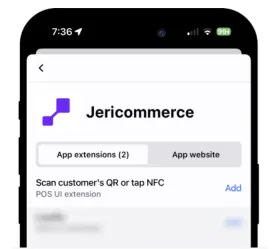
Link reader to POS
Now, the last step is to link both devices, which should be very easy. Go to the location where you added the device earlier, and you should see the "Link POS" button. Click on it and select the POS you want to link. That's it!
Now you can test it with your shop's loyalty card. Just tap it with your phone, whether it's Android or Apple, and you should see the current cart linked to the customer in less than 2 seconds.
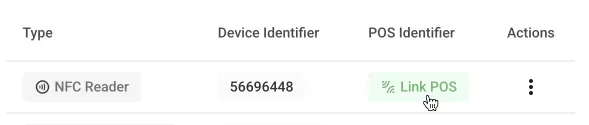 Link POS to NFC Reader
Summary
So let's summarize step by step:
- Go to Settings > Locations & Devices
- Choose a Shopify Location where locate the NFC Device
- Click on More > Add Device > NFC Reader and follow the instruction
- Install the "Scan QR or tap NFC" tile from JeriCommerce on the POS
- Now click on the "Link POS" button on the NFC device add it previously
- Do you first Loyalty card tap