Implementing a notification flow on Klaviyo can be more complex than on Shopify flows, but with the power of API keys, you can reproduce the same scenario.
How to send a Wallet Push Notification from Klaviyo Flows
To send a notification, you need to send a POST request to the jericommerce API, including the customer's email and the content of the notification.
Here's a step-by-step guide to create the action on Klaviyo flows:
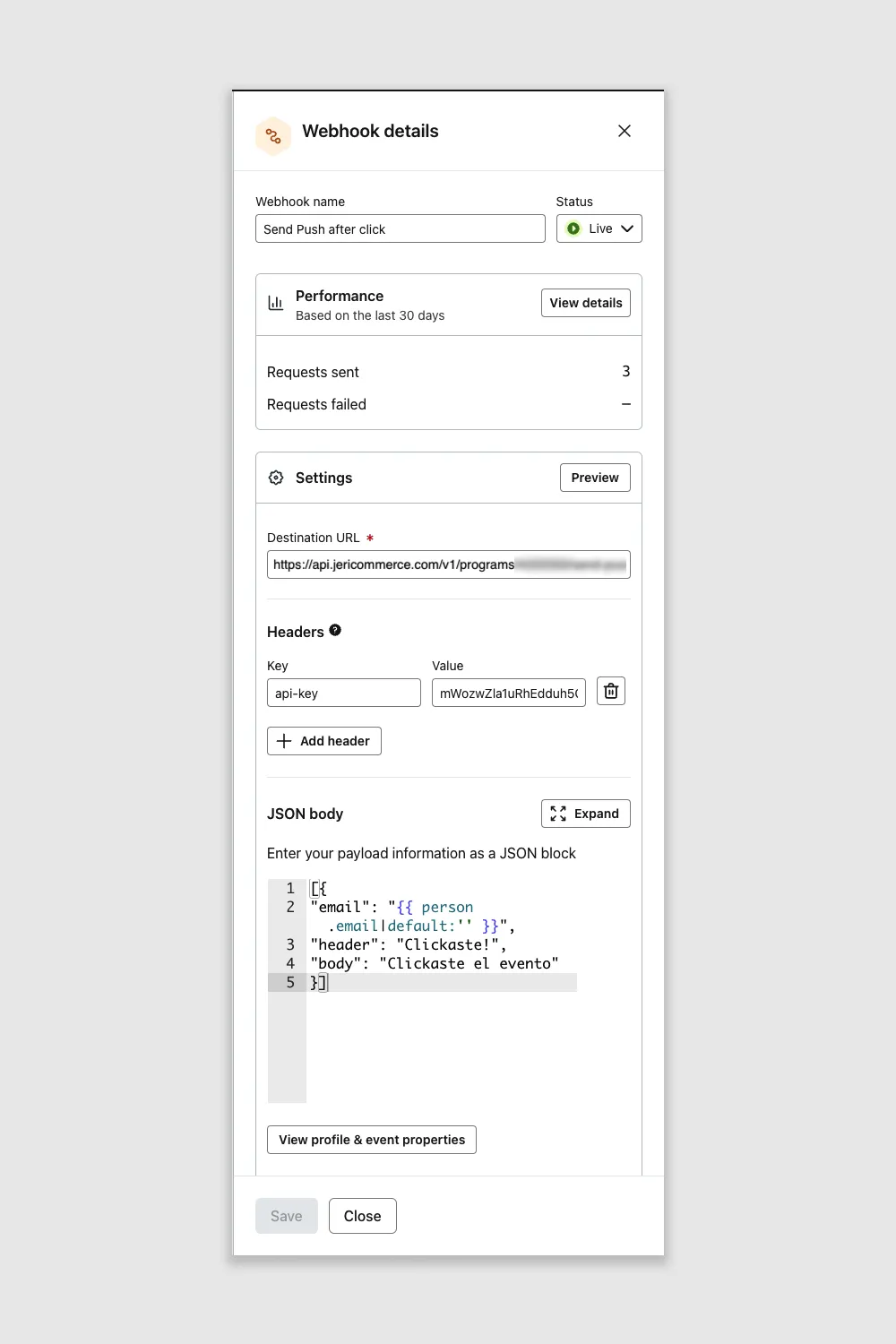
1. Create a web-hook action on Klaviyo.
- On the web-hook "Settings card" add the send-push endpoint as the destination URL. Replace the
{{program_slug}}parameter with your program ID, which you can find in the Jericommerce settings under Settings > Technical > Program Information
`` 3. In the headers section, add your API key to authenticate the request. Go to Settings > Technical > API Keys create a new key or use an existing one, and paste the value in the Value field, with "api-key" in the Key field.
-
Now, you can complete the body with the customer information and the content information. The body is an array of notifications, and each one should have three keys:
-
Email: The customer's email where you want to send the push notification, which you can retrieve from the user's profile that triggered this flow.
- Header: This is the title visible on the back of the wallet pass.
- Body: The long content of the push notificationhere a body example:
``
It is important to keep in mind that the body should be an array of objects, even when sending a single push notification.
Pro tip
For 3rd party systems, like Klaviyo, you could use our variables system, see the details on our post about variables. This means that you could add as header, body or link some variable.
Klaviyo already have similar template variables, as we have and use the {{ variable_name }} to encapsulate the variables.
For this reason, we already support another capsule style, which is <% variable_name %>.
Both have the same functionality.
The on-device variables still using only one kind of format that is %%variable_name%%
`` Take a look at an example of using both types of variables in a push notification:
You can see how we use the variable from Klaviyo for the email and the JeriCommerce variable for the name.
Webhook creator utility
Configurador de Webhook
Rellena estos datos y copia los códigos generados directamente en Klaviyo.
- Tus Datos
Program ID
✨ Autocompletado desde tu sesión Lo encuentras en la URL de tu panel Jericommerce.
API Key
- Contenido de la Notificación
Título (Header)
Mensaje (Body)
Link / Deep Link (Opcional)
- Copia y Pega en Klaviyo
Campo: Destination URL
https://api.jericommerce.com/v1/programs/ COPIAR
Sección: Headers (Key / Value)
Key api-key COPIAR
Value ... COPIAR
Sección: JSON Body { "email": "{{ person.email|default:'' }}", "header": "", "body": "", "link": "" } COPIAR JSON COMPLETO